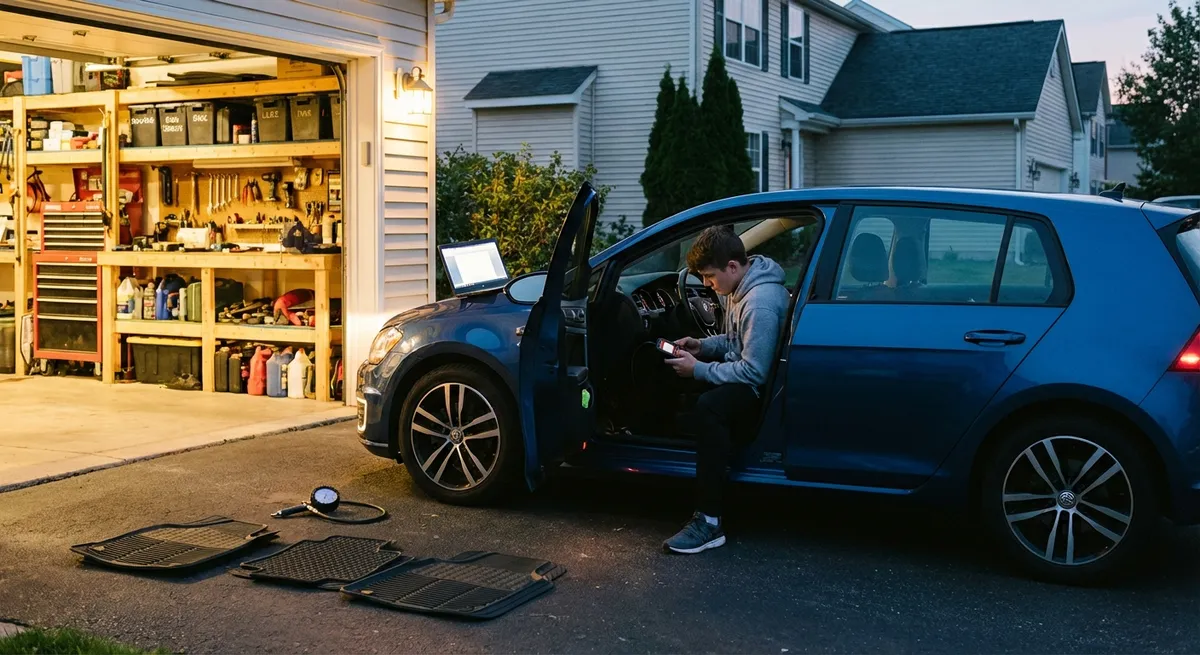
This guide walks through practical, underused tech features most drivers already have (or can add cheaply), and shows you exactly how to dial them in for real-world driving.
Dial In Your Driver Profiles Instead of Leaving Them on “Default”
Most newer cars let you save driver profiles that control far more than just seat position. Properly setting this up turns your car from a generic appliance into something that quietly adapts to you every time you get in.
What to do:
Create a primary profile tied to your key or phone
Dig into your vehicle settings and look for “Driver Profile,” “Driver Settings,” or similar. Connect it to your key fob or, if supported, your phone as a digital key. That way, your settings load automatically when you unlock the car.
Go beyond seat and mirrors
In many models you can store: - Steering feel (comfort vs sport) - Throttle response / drive mode - Instrument cluster layout - Ambient lighting - Radio favorites and audio EQ - Climate preferences Set them once for how you actually drive most of the time—commute, school runs, errands.
Create a “road trip” or “late-night” profile
A secondary profile can be optimized for long drives: softer steering, calmer ambient lighting, less aggressive throttle, higher lane-keep assistance sensitivity, and relaxed cruise control following distance. A “late-night” version might dim interior screens, reduce audio bass, and prioritize driver attention alerts.
Don’t ignore guest or valet modes
If your car includes a guest or valet profile, limit max speed, audio volume, and navigation access. This protects your settings and your data when someone else borrows your car or hands you a parking ticket.
The payoff: every time you start the car, it silently sets itself up to match how you actually drive that day instead of forcing you to adjust on the fly.
Make ADAS Work for You, Not Against You
Advanced driver-assistance systems (ADAS)—things like adaptive cruise control, lane keeping, and blind-spot monitoring—are powerful when configured well, but annoying when left in their default state. A few minutes in the settings menu can be the difference between “constant beeping” and “quiet extra set of eyes.”
What to do:
Customize sensitivity instead of just turning things off
Many systems allow you to change: - Forward collision warning timing (early/medium/late) - Lane departure warning sensitivity - Lane-keep steering strength - Blind spot warning volume and brightness If you find the alerts too “jumpy,” shift from “early” to “normal” rather than disabling them entirely.
Tighten or relax following distance on adaptive cruise
On crowded highways, the default following gap can feel too big or too small. Learn how to adjust the gap (usually steering-wheel buttons with distance icons) so the system behaves more like you do—without tailgating.
Test lane assist on roads you actually use
Take 30 minutes on your usual commute to see: - Where lane-keep works well - Where it struggles (faded lines, construction zones) You’ll learn where to trust it and where it’s better to switch it off temporarily.
Pair ADAS setup with a quick camera check
While you’re in the menu, clean the windshield, front radar area, and any camera lenses (front emblem, side mirrors, rear hatch). Many false alerts and system “unavailable” errors come from simple dirt and grime.
The payoff: your tech quietly adds a layer of safety, instead of nagging you so much that you ignore it or shut it off.
Use Your Car’s Data to Build a Smarter Maintenance Plan
Your car is constantly collecting information about how it’s driven, how far, and under what conditions. Even without an advanced telematics subscription, you can use built-in data to run your car smarter and catch problems before they turn pricey.
What to do:
Turn trip computers into maintenance triggers
Reset one trip meter at each oil change or service. Then: - Use distance and average speed to judge how “hard” the miles are - Adjust oil change intervals if you do lots of short, cold trips (hard duty) - Use fuel economy changes as a clue for tire pressure or engine issues
Use service reminders properly—not blindly
Many manufacturers let you choose between: - Fixed intervals (e.g., every 10,000 miles) - Variable or “condition-based” intervals using sensors and driving data If you do mostly city driving, condition-based is often more accurate than fixed intervals.
Export or log data when possible
Some infotainment systems or apps let you: - Download driving and maintenance history - View monthly mileage and efficiency reports Even a simple spreadsheet or notes app with mileage, date, and what you did can help you spot patterns like “brakes wearing faster than they should” or “battery getting weak every winter.”
Leverage warning histories
In some cars, you can review recent warning messages. If a “check engine” light or warning pops up and disappears, check the event history later. Repeated, brief alerts can point toward intermittent issues that are cheap to fix early and expensive if ignored.
The payoff: you respond to what your car is actually doing, not just a generic calendar date, and you get better at catching “small weirdness” before it becomes a big bill.
Turn Your Phone Into a Purpose-Built Driving Tool, Not a Distraction
For many vehicles, the most powerful piece of auto tech is the phone you already own. The key is setting it up so it reduces distraction and friction while driving, instead of adding to it.
What to do:
Set up Apple CarPlay or Android Auto properly
If your car supports it: - Use high-quality, short cables for wired connections - Update your phone OS and key apps (maps, music, podcast) - Remove unused apps from the CarPlay/Android Auto home screen so only driving-relevant tools appear This cuts down hunting and tapping while moving.
Pre-build “drive-ready” home screens
Even without CarPlay/Android Auto, create a driving-focused phone screen with: - Maps - Music or podcast app - Charging network or gas price finder - Parking app (for your city or garage) Enable “Do Not Disturb While Driving” with only critical contacts allowed through.
Use ecosystem apps from your car’s manufacturer
Most modern brands have companion apps that let you: - Check fuel or battery level remotely - Lock/unlock and pre-condition the cabin - Schedule charging (for EVs) or remote start (where legal) - Send destinations from your phone to the in-car nav Linking these tools to your daily routine (like pre-heating or pre-cooling while you’re still at your desk) makes the car feel far more “intelligent.”
Mount wisely, charge efficiently
A stable, line-of-sight phone mount near eye level reduces distraction and neck strain. Combine it with a properly sized fast charger (ideally wired in the car) so navigation and music don’t kill your battery on long drives.
The payoff: your phone becomes a streamlined control hub for your trips instead of a constant temptation to multitask behind the wheel.
Use Simple Add-On Tech to Bridge Gaps in Older Cars
If your car is a bit older, you don’t need to jump straight to a new vehicle to get modern tech benefits. A few smart, inexpensive add-ons can bring core features of newer models into your existing ride.
What to do:
Add a quality dash cam with parking mode
Look for: - Front (and ideally rear) coverage - Loop recording with a large-capacity microSD card - Impact-triggered “event” recording - Parking mode with low-voltage protection This gives you evidence in collisions or hit-and-runs and can reduce insurance headaches.
Upgrade to Bluetooth with real hands-free capability
If you don’t have built-in Bluetooth: - Use a reputable Bluetooth FM transmitter or AUX adapter - Prioritize units with noise cancellation and auto-reconnect Set your phone to auto-accept calls on Bluetooth only, then leave it mounted and untouched while driving.
Consider a backup camera retrofit
Many aftermarket kits integrate into your existing rear-view mirror or infotainment screen. When correctly installed and aimed, they dramatically improve rear visibility, especially on tall vehicles or work trucks.
Add a dedicated tire pressure monitoring upgrade, if needed
For vehicles without factory TPMS (or with flaky sensors), an external system with in-valve or cap-style sensors and a small display can: - Warn you of slow leaks early - Help you optimize tire pressures for mileage and wear - Protect you from blowouts on road trips Set the alerts to realistic pressure thresholds so you’re warned about real problems, not just minor temperature-related swings.
The payoff: you bring your older car up to modern safety and convenience standards for a fraction of the cost of upgrading to a newer model.
Conclusion
Auto tech doesn’t have to mean chasing the latest gadget or trading in your car every few years. By learning what your current vehicle can already do—and adding a few targeted upgrades—you can make every drive calmer, safer, and more tailored to you.
Start with the basics: set up driver profiles, tune your assistance systems, and get your phone properly integrated. Then decide which add-ons solve real problems you have, not just what looks cool on a spec sheet. The result is a car that quietly works with you in the background, so you can keep your focus where it belongs: on the road.
Sources
- [National Highway Traffic Safety Administration – Driver Assistance Technologies](https://www.nhtsa.gov/equipment/driver-assistance-technologies) - Clear explanations of common ADAS features and how they’re intended to improve safety
- [AAA – Advanced Driver Assistance Systems (ADAS) Research](https://www.aaa.com/autorepair/articles/advanced-driver-assistance-systems) - Practical guidance on using ADAS features effectively in everyday driving
- [Edmunds – How Often Should You Change Your Oil?](https://www.edmunds.com/car-maintenance/how-often-should-you-change-your-oil.html) - Background on maintenance intervals and condition-based service recommendations
- [Consumer Reports – What You Need to Know About Dash Cams](https://www.consumerreports.org/cars/car-safety/dash-cams-review-a9560174868/) - Independent overview of dash cam benefits and key features to look for
- [Apple – Use Do Not Disturb While Driving](https://support.apple.com/en-us/HT208090) - Official instructions for configuring iPhone to reduce distractions behind the wheel