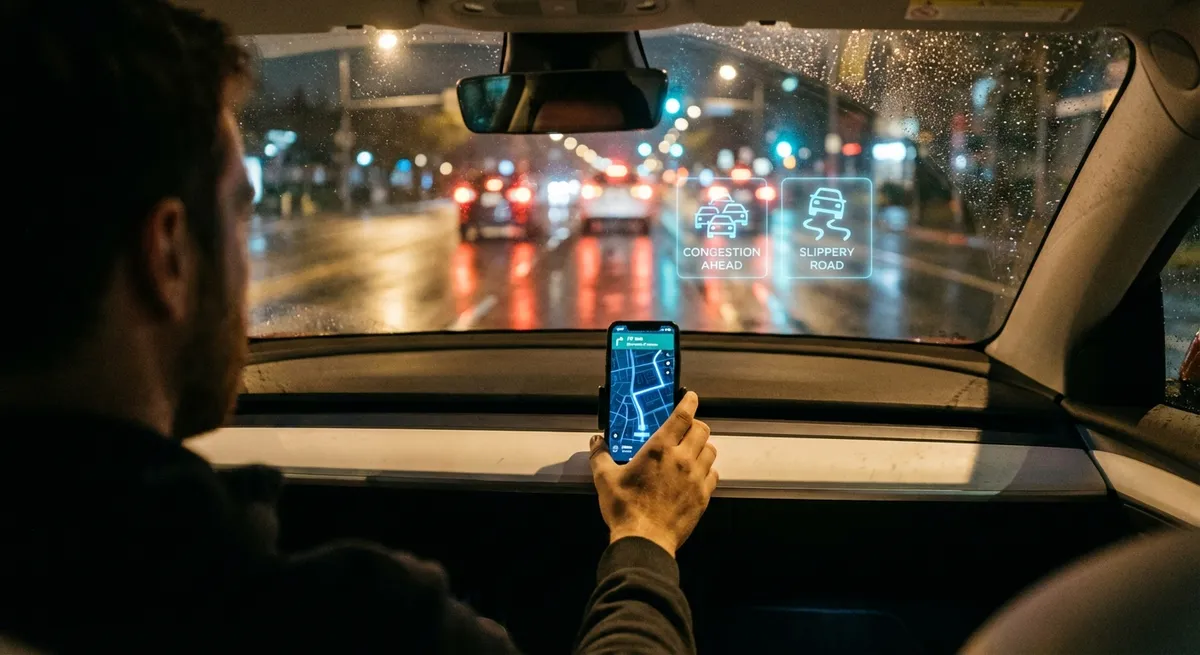
This guide focuses on real-world, hands-on moves you can make in an afternoon, not theoretical “future of mobility” talking points.
Lock In a Solid Phone Integration Setup (and Keep It Updated)
Your phone is the brain of your driving life—navigation, music, messages, parking apps, even digital insurance cards. If your phone-to-car connection is flaky, everything else suffers.
Start by deciding your primary connection: wired USB or wireless (Bluetooth or wireless Android Auto/Apple CarPlay, if supported). Wired is usually more stable for long trips and charges faster, so use it as your default if you rely heavily on navigation. Wireless is great for quick urban errands where you’re in and out of the car often.
Next, trim your Bluetooth list. Delete old devices from both your car and your phone (old phones, ex-rentals, etc.). Fewer paired devices means faster, more reliable connections and fewer “which device?” pop-ups.
Then, customize your projection settings:
- Turn off message previews on-screen if they distract you, but keep audio readouts if your system supports it.
- Pin your most-used navigation and music apps to the first page of your infotainment system so you’re not hunting for them at every light.
- Enable “Do Not Disturb While Driving” or the platform equivalent. Let your phone auto-reply to texts while using maps, so you’re not tempted to respond manually.
Finally, update both your phone OS and your car’s head unit software where possible. Many newer vehicles offer over-the-air (OTA) firmware updates that fix connection bugs and add features. If your car doesn’t update itself, ask your dealer during routine service if any infotainment or navigation updates are available.
Use Built-In Driver Assistance as Tools, Not Autopilot
Advanced driver-assistance systems (ADAS) like lane-keeping assist, adaptive cruise control, blind-spot monitoring, and automatic emergency braking are standard on many newer vehicles—but you get the most benefit when you understand exactly what they do and where they fail.
Start with your owner’s manual or the manufacturer’s online guide for your specific system. Pay attention to limitations: weather conditions, lane markings, speed ranges, and when systems can shut off unexpectedly (sharp curves, construction zones, faded lines).
When you first use a feature like lane-centering or adaptive cruise, test it on a familiar, low-stress route: wide highway, light traffic, good weather. Treat it as a safety net, not as a replacement for active driving. Keep your hands on the wheel even if the system doesn’t nag you—some vehicles only monitor minor steering input and can give a false sense of automation.
Adjust the sensitivity to match your environment:
- In dense urban areas, reduce the following distance on adaptive cruise cautiously, so the system isn’t constantly braking.
- On long highway drives, increase the following distance and keep lane-keeping enabled to reduce fatigue, but stay mentally engaged.
- Dial in blind-spot alerts and rear cross-traffic alerts; if you find them too “noisy,” adjust volume or type of alert instead of turning them off entirely.
Finally, treat software updates related to safety systems as mandatory. If your manufacturer issues an update for collision avoidance, braking logic, or steering assist, schedule it promptly—these often come from real-world crash data and can directly affect how your car behaves in emergencies.
Turn Your Car Into a Smarter Navigation Hub
Most drivers use a single favorite maps app and call it a day, but you can stack your navigation tools to get better routing, safer trips, and lower stress.
First, sync your home and work addresses across your main navigation apps (Google Maps, Apple Maps, Waze, or the built-in system). This speeds up route planning and lets apps provide more accurate traffic predictions and departure-time suggestions.
Next, layer your navigation sources instead of relying on just one:
- Use a primary app for turn‑by‑turn routing.
- Keep a secondary app ready for quick cross-checks during unusual delays (accidents, closures, severe weather).
- If your car has built-in navigation, save it as a backup for areas with poor cellular coverage—but make sure map data is updated periodically via SD card, USB, or dealer updates.
Leverage advanced features many drivers ignore:
- Set route preferences: avoid tolls, ferries, or unpaved roads if those matter to you.
- Save frequent destinations: favorite fuel stations, preferred EV chargers, trusted service shops, and regular weekend locations.
- Use live traffic and incident reports in unfamiliar cities; crowd-sourced info from apps like Waze can warn you of hazards or sudden slowdowns.
For EV owners, use charging-aware navigation that understands your current battery level, driving style, and charger availability along the route. Many OEM apps and third-party services (e.g., PlugShare, ChargePoint) can route you efficiently and reduce “range anxiety” by planning your stops intelligently.
Put Your Car’s Data to Work: Apps, Logs, and Simple Diagnostics
Modern vehicles generate a huge amount of data—fuel use, trip history, tire pressures, service intervals, even battery health on EVs. You can capture and use that data to spot problems early and make smarter decisions about maintenance and driving habits.
Start with your manufacturer’s official app. Link your car so you can:
- Monitor fuel level or battery charge remotely.
- Check tire pressures before long trips.
- Receive maintenance reminders based on mileage or time.
- See basic diagnostic alerts and recall notifications.
Then, build a simple, digital “car log” for your own reference. This can be as basic as a notes app or spreadsheet where you track:
- Date, mileage, and description of every service.
- Fuel economy (manual or from your apps) to spot gradual declines that can indicate tire, engine, or sensor issues.
- Any error messages or unusual behavior and when they occurred.
If you’re technically inclined and your car is out of warranty, consider a reputable OBD-II Bluetooth adapter paired with a trusted app. Use it carefully:
- Read check-engine codes before visiting a shop so you’re not in the dark.
- Monitor live data (coolant temp, transmission temp, fuel trims) during challenging conditions like steep mountain drives or towing.
- Avoid changing settings or clearing codes blindly; use this primarily for awareness and logging.
Finally, know where the line is between DIY insight and professional diagnosis. If you see repeated codes, sudden big drops in fuel economy, or abnormal temperatures, treat the data as a “go to a trusted mechanic now” signal rather than an invitation to attempt complex repairs yourself.
Lock Down Your In-Car Tech for Security and Privacy
As vehicles become more connected, they also become higher-value digital targets and data collectors. A few careful steps can reduce your exposure without breaking the tech that makes your life easier.
Start with account hygiene:
- Use strong, unique passwords for your car’s app and any related online accounts.
- Turn on multi-factor authentication (MFA) wherever offered, especially for apps that can unlock or start your car.
- Periodically review and sign out old devices from your account, especially after selling a phone or renting a car linked to your profile.
In the car itself, review what’s being stored:
- Delete old navigation destinations that reveal your home, work, or children’s schools if you’re selling or lending the car.
- Clear personal data—Bluetooth pairings, contacts, call history, and garage door opener codes—before trade‑ins or rentals.
- If your car supports “profiles,” create a separate, limited profile for valet parking or lending to friends, without full access to everything.
Control data sharing and permissions:
- Check your infotainment settings for toggles related to driving data sharing, usage analytics, or cloud backups, and turn off anything you’re not comfortable with.
- When connecting a rental car to your phone, decline contact and message sync if you don’t need it, and always remove your phone and data before returning the vehicle.
- When using third-party apps with access to vehicle data (e.g., insurance telematics, “connected car” services), review what they collect and how long they keep it.
Finally, keep the digital side of your car “patched.” Software updates don’t just fix bugs—they often close security gaps. For vehicles that support OTA updates, schedule installations when you know you don’t need the car for a bit. For others, let your service advisor know you want all available security-related updates applied at scheduled maintenance.
Conclusion
Auto tech doesn’t have to be overwhelming or gimmicky. With a few well-chosen habits—solid phone integration, well-understood driver assists, smarter navigation setups, basic data logging, and better security—you can turn the tech you already have into a real advantage every time you drive.
These aren’t one-time “set and forget” steps. Revisit them whenever you change phones, update software, move to a new city, or start a new commute. The more intentional you are with your car’s tech, the more it becomes an everyday tool instead of a confusing dashboard of unused icons.
Sources
- [NHTSA – Advanced Driver Assistance Systems (ADAS)](https://www.nhtsa.gov/equipment/adas) - Overview of common driver-assistance features and their safety role
- [AAA – Active Driving Assistance System Performance](https://newsroom.aaa.com/tag/advanced-driver-assistance-systems/) - Real-world evaluations of driver-assistance technologies and limitations
- [Consumer Reports – Guide to Car Safety Features](https://www.consumerreports.org/cars-guide-to-car-safety-features/) - Plain-language breakdown of modern safety and driver-assist systems
- [FTC – Connected Cars and Privacy](https://www.consumer.ftc.gov/articles/connected-cars) - Government guidance on data, privacy, and security in connected vehicles
- [U.S. Department of Energy – Vehicle Technologies](https://www.energy.gov/eere/vehicles/vehicle-technologies-office) - Technical background on vehicle technologies, connectivity, and efficiency