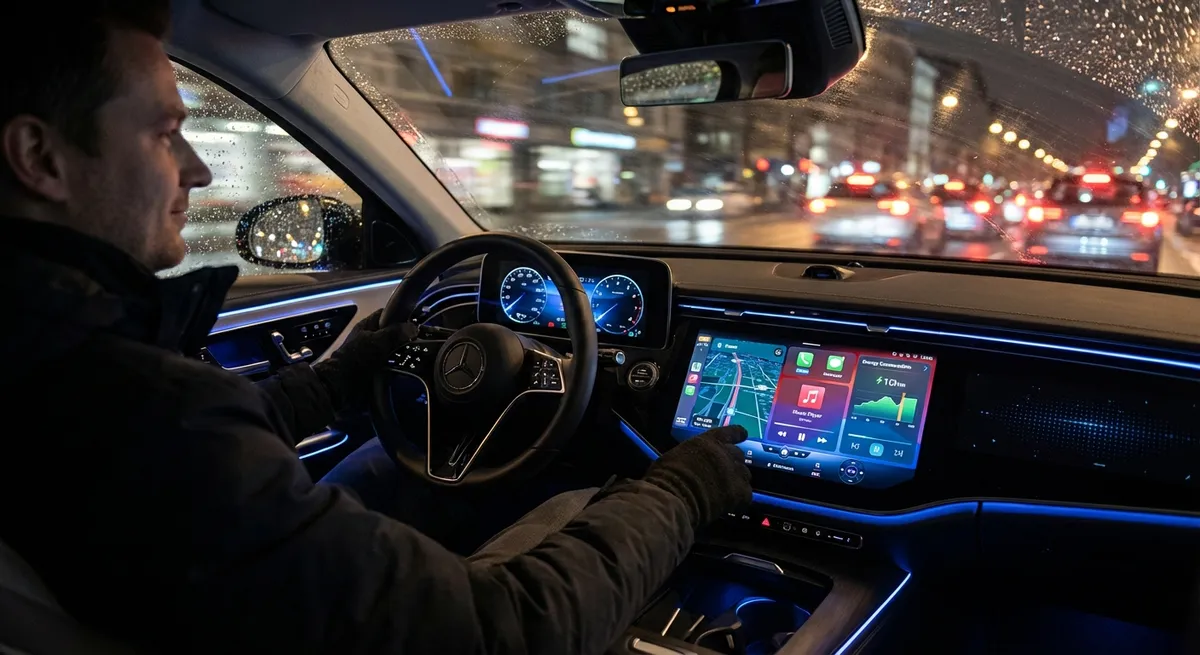
This guide walks through practical, underused tech features found in many modern cars—whether you drive something brand-new or just “new enough” to have a screen. You don’t need to be a gadget person to benefit; you just need to spend 20–30 focused minutes in the driveway dialing things in.
Calibrate Your Driver Profiles, Not Just Your Seat
Driver profiles are often treated as a fancy seat-memory shortcut, but on many cars they extend far beyond seat position. A proper profile can bundle seat, mirrors, steering weight (in cars with drive modes), climate preferences, radio presets, navigation history, instrument cluster layout, and even advanced driver‑assist (ADAS) sensitivity. Take time to create a profile for each regular driver instead of everyone “sharing” the default.
Start with the basics—seat height, distance to pedals, and steering wheel reach—then set exterior mirrors to minimize blind spots before saving. Next, adjust the instrument cluster or digital dash layout to show information you actually use (speed, speed limit, fuel economy, tire pressure, or navigation prompts) instead of eye candy. Go into the driver‑assist menu and choose lane-keeping and alert types that feel helpful, not nagging; otherwise you’ll just turn them off later. Finally, assign each profile to a key if your car supports it, so the cabin config loads automatically when you unlock the car.
Clean Up Your Phone Integration So It Stops Fighting You
CarPlay and Android Auto can be powerful—if they’re not a cluttered mess. The goal is simple: fewer taps, less scrolling, and no “where did that app go?” while driving. Start by opening CarPlay/Android Auto layout settings on your phone, not just on the car’s screen. Arrange your core apps—navigation, music/podcasts, messaging, and charging/parking if you use EVs—on the first page so they’re always one tap away.
Turn off notifications from apps that have no business in the car, like social media or games. For messaging, enable read‑aloud and voice reply, and disable on‑screen previews if they tempt you to look down. In your maps app, pre‑configure “Home” and “Work” plus any frequent destinations so you aren’t typing addresses in park or, worse, on the move. Finally, learn the essential voice commands for your ecosystem (“Hey Siri, directions to…”, “Hey Google, text…”) and use them—this is where phone integration adds real safety, not just convenience.
Tune Your Driver‑Assist Settings for Real Roads, Not the Brochure
Most cars now ship with a bundle of driver‑assist features, but they’re often configured for a test track, not real‑world commuting. Spend time in the assist settings menu and adjust each feature’s behavior instead of defaulting to “all on” or “all off.” With adaptive cruise control, experiment with following‑distance levels; a medium or long gap often feels smoother and less “yo‑yo” than the shortest setting, especially in traffic.
For lane‑keeping and lane‑centering, see if you can choose between gentle steering support and strong correction. If the wheel is constantly fighting you on curvy roads, back off the intensity or change to an alert‑only mode; you’re more likely to keep it enabled if it feels natural. Look at forward‑collision alert sensitivity as well—too sensitive and you’ll ignore it, too dull and it’s not doing its job. Some cars let you tweak blind‑spot warning brightness and sound; pick a configuration that’s obvious without being startling at night. The end result: a set of assists that work with you instead of against you.
Use Built‑In Trip and Energy Data to Spot Problems Early
Your car’s trip computer and efficiency screens are more than trivia—they’re early‑warning tools for mechanical and driving issues. Reset a trip meter and fuel/energy average at each fill‑up or charging session, and pay attention to trends over weeks, not just single drives. A sudden, sustained drop in fuel economy with no driving change can hint at underinflated tires, dragging brakes, a failing sensor, or even a roof rack or cargo box you forgot to remove.
If your car shows real‑time consumption, use it to “test” different behaviors. Watch how gentle vs. aggressive acceleration changes the instant reading on similar roads. Over time this builds intuition for how speed, hills, and loads affect your car specifically, not just “in theory.” Some EVs and hybrids show where energy is going: climate control, drivetrain, accessories. If climate is dominating, try using seat and wheel heaters at a slightly lower cabin temperature in winter, or pre‑conditioning while plugged in. Treat these screens like dashboards on a small airplane: they aren’t just interesting—they’re giving you clues about how to make your machine last longer and cost less to run.
Customize Alerts, Sounds, and Displays to Reduce Mental Fatigue
Modern cars can be noisy without the engine making a sound—beeps, chimes, pop‑ups, warnings, and reminders. Too many alerts make you tune out all of them, including the important ones. Dive into the sound and notification settings and prioritize: what do you genuinely need to hear or see while driving, and what can be quieter or off? For example, keep seatbelt, collision, and critical system warnings at full volume, but reduce or disable confirmation beeps for every tap, door chime over‑sensitivity, or redundant speed alerts if your cluster already shows the limit clearly.
On the display side, consider using “minimal” or “focus” modes at night, if your car supports them, with darker themes and fewer bright elements. This can reduce eye strain on long drives and make outside hazards easier to see. Dim the center screen brightness so it doesn’t reflect in the windshield after dark, but keep essential info like navigation cues and camera guidelines visible. If your car can remember separate day and night display profiles, set them up once and let them auto‑switch. You’ll be less tired at the end of a long trip simply because your brain had less clutter to filter.
Conclusion
Your car’s tech can either feel like a distraction or a quiet advantage—it depends on how intentionally you set it up. By tailoring driver profiles, cleaning up phone integration, tuning driver‑assist behavior, watching trip data, and trimming unnecessary alerts, you turn the screen in your dash into a tool instead of a toy.
Spend one evening in the driveway going through these settings with the owner’s manual or on‑screen help nearby. It’s a one‑time effort that pays off every single drive—and it’s the easiest “upgrade” you can make without turning a wrench.