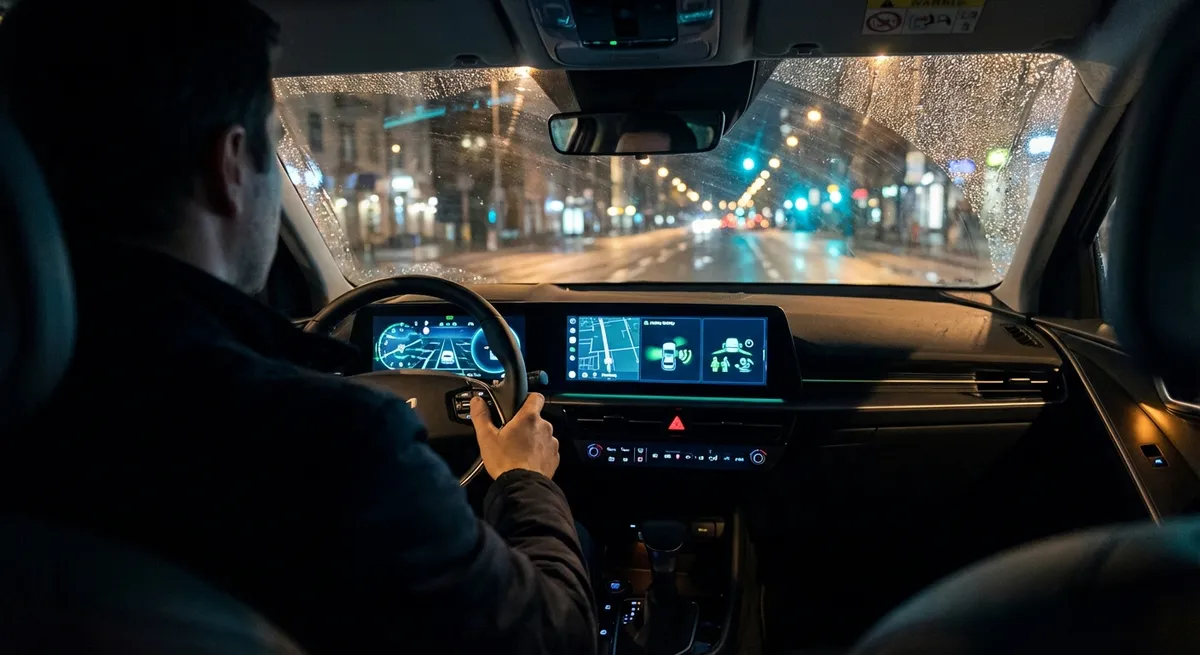
Start With a Clean Software Baseline
Before you dive into features, make sure the tech you already have is running at its best. Automakers and infotainment suppliers routinely push updates that fix bugs, improve connectivity, and sometimes even add new features.
First, check your owner’s manual or the settings menu on your infotainment screen to see how software updates are delivered—over-the-air (OTA), via Wi‑Fi, or through a dealer visit. If your car supports OTA updates, connect it to a secure home Wi‑Fi network so it can download updates while parked. For vehicles without OTA, check the manufacturer’s website periodically or ask the service department to confirm your software version during scheduled maintenance.
Keep your paired phone updated as well; newer versions of iOS and Android often improve Bluetooth stability, Android Auto, and Apple CarPlay behavior. If your connection seems flaky, delete the car from your phone’s Bluetooth list and remove the phone from your car’s paired devices, then set them up again from scratch. A fully updated, freshly paired system is the most stable starting point for everything else you want to do with your in-car tech.
Customize Your Driver Profile for Real-Life Use
Many modern cars let you store driver profiles that control everything from seat position to ambient lighting. Most owners use them only for seat and mirror memory, but they can be tuned for specific driving contexts to reduce distractions and make trips smoother.
Start by naming your main profile with your typical use—commute, family, or road-trip, for example. Within that profile, adjust instrument cluster layout (if digital) to highlight what you actually care about: maybe a large speed readout and fuel range for highway commuters, or a power/EV usage gauge for hybrid drivers who want to maximize efficiency. Then look for options tied to your profile, such as steering weight, throttle response, and climate presets; choose calmer, smoother settings if you tend to drive in traffic.
If your vehicle supports multiple profiles linked to keys or smartphones, set up a separate “Minimal Distraction” profile with simplified screens, reduced alerts, and lower display brightness for night driving. That way you can switch context with one tap instead of digging through menus. Once configured, your car stops “fighting” your habits and simply adapts every time you get in.
Tame Notifications, Alerts, and Voice Prompts
By default, cars often ship with every beep, chime, and prompt enabled at full volume. That can quickly become noise you tune out, including alerts that actually matter. It’s more effective to simplify your alert landscape so the sounds you do hear are meaningful.
Go through your settings menu and look for sections labeled “Driver Assistance,” “Safety,” or “Alerts.” Prioritize collision warnings, lane departure warnings, and blind-spot alerts—keep these enabled, but adjust their sensitivity and volume so they’re noticeable without being jarring. If your car lets you choose between vibration (through the steering wheel or seat) and audio alerts, pick the method you’re least likely to ignore.
Next, trim down infotainment notifications. Disable or minimize app-based alerts (like messaging previews) that tempt you to look away from the road, especially if your car’s system mirrors your phone. In voice-assistant settings, shorten or disable unnecessary spoken prompts; for example, some systems let you turn off confirmation messages after simple voice commands. The goal is a “quiet but sharp” cockpit where the only sounds are music, navigation instructions, and safety-critical alerts you’ve chosen.
Optimize Your Phone Integration, Don’t Just Mirror It
Apple CarPlay and Android Auto are powerful, but if you just plug in and go, you may end up with a cluttered interface that makes you scroll and tap more than you should. A few minutes of setup can turn your phone integration into a focused driving hub.
On your phone, rearrange the apps that appear in CarPlay or Android Auto. Put your primary navigation, music, and podcast apps on the first page and hide or remove apps you’ll never use while driving. Many supported apps allow a “car mode” or simplified interface—enable these where available to reduce tiny buttons and dense text.
Then customize your default navigation and audio sources. Set your preferred nav app’s voice guidance volume and whether it ducks or pauses music during instructions. In your car’s settings, choose whether calls, messages, and media come from the phone or the car’s built-in system so you don’t get confusing duplicates. Finally, learn two or three key voice commands for navigation (“navigate to home”), calling (“call [name] mobile”), and music (“play my driving playlist”) so you’re not forced to reach for the screen in traffic.
Use Built-In Data to Improve Efficiency and Maintenance
Your car is already tracking far more information than what shows on the basic trip odometer. Tapping into those hidden or underused data points can save fuel, extend component life, and help you spot issues early.
Look for detailed trip computers that display average speed, fuel/energy consumption, and time spent idling. Reset a trip counter at the start of your work week or a long journey and see how different driving styles affect results. If your vehicle shows live economy or power-usage graphs, use them to experiment: smoother acceleration and earlier, gentle braking often make a visible difference even over a single commute.
Many cars also have maintenance monitors that go beyond simple mileage counters, taking into account driving conditions to predict when service is actually needed. Learn where to see remaining oil life, brake wear indicators (if available), or battery health readouts on EVs and hybrids. Use this information to plan service before issues become urgent, and keep a simple log (even in your phone’s notes app) of warnings or anomalies. Over time, you’ll build a picture of how your specific car behaves, which is far more useful than generic schedules alone.
Conclusion
You don’t need a brand-new model or expensive options to get more value from in-car tech. By updating your software, tuning your driver profile, simplifying alerts, refining phone integration, and paying attention to the data your car already provides, you transform the tech from a distraction into a genuine driving assistant. A couple of focused setup sessions can pay off every single day you’re behind the wheel.
Sources
- [NHTSA – Distracted Driving](https://www.nhtsa.gov/risky-driving/distracted-driving) - Explains how in-vehicle systems and mobile devices can contribute to distraction and offers safety guidance.
- [AAA Foundation – Vehicle Technologies & Driving Behavior](https://aaafoundation.org/driver-interaction-with-vehicle-technologies/) - Research on how drivers use advanced in-vehicle technologies and the impact on behavior.
- [Consumer Reports – How to Make the Most of Your Car’s Infotainment System](https://www.consumerreports.org/cars/how-to-make-the-most-of-your-car-s-infotainment-system-a7530334518/) - Practical advice on setup, customization, and avoiding common tech frustrations.
- [Apple – Use CarPlay with your iPhone](https://support.apple.com/en-us/HT205634) - Official guidance on configuring and customizing Apple CarPlay.
- [Google – About Android Auto](https://support.google.com/androidauto/answer/6348029) - Official Android Auto documentation covering features, compatibility, and setup options.