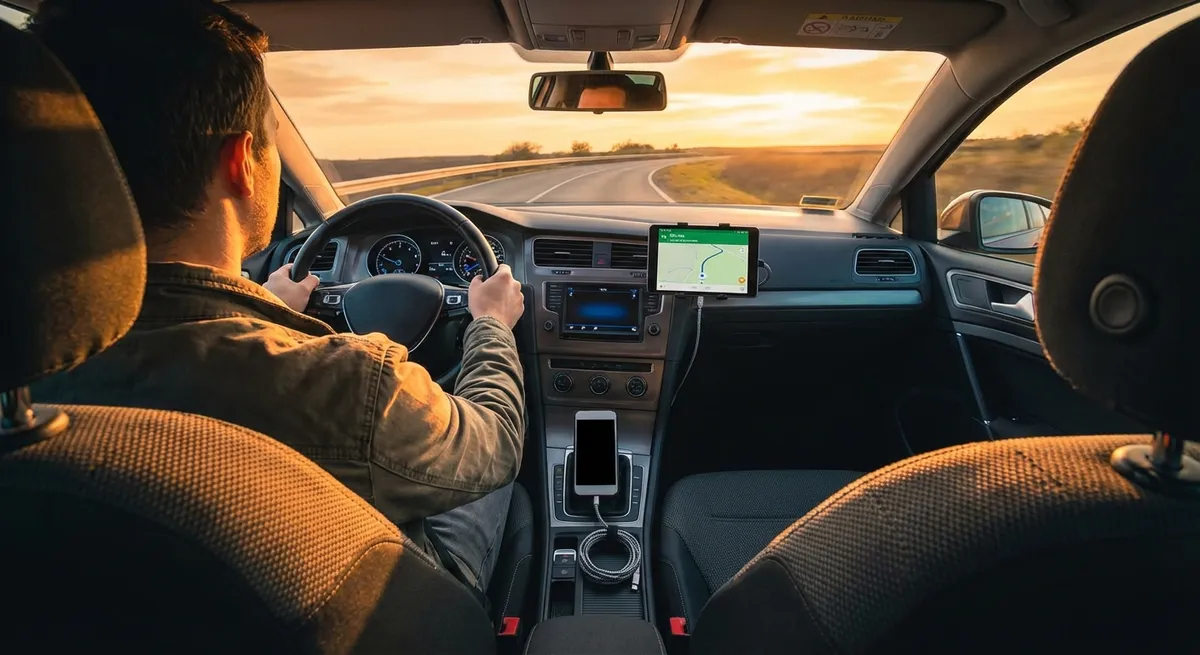
This guide focuses on practical, real-world auto tech that solves problems you actually deal with: navigation, charging, safety, and keeping your car and data secure.
Get Your Phone and Car Speaking the Same Language
Before you add any gadgets, you need a stable, reliable connection between your phone and your car. This is the backbone for almost everything else: navigation, audio, calls, and app integration.
Start by checking your infotainment system for software updates—either through your car’s settings menu or the manufacturer’s website. Many newer vehicles allow over-the-air (OTA) updates via Wi-Fi, which can improve Bluetooth stability and app compatibility. For older cars, a dealership visit or a USB update might be required.
If your vehicle supports Apple CarPlay or Android Auto, use them. They’re usually more responsive and secure than many factory systems, and they keep maps, calls, and messaging on your phone—where updates are frequent and security is stronger. If your car doesn’t have them, consider an aftermarket head unit with CarPlay/Android Auto support. These units often add better screens, more inputs, and faster processors than older OEM units.
When pairing your phone via Bluetooth, delete old or unused devices from your car’s memory. A cluttered list can slow connection times or cause pairing conflicts. Also, set priorities: disable auto-connect for devices you don’t use anymore (like an old work phone or a previous owner’s device) so your car always grabs your main phone first.
Finally, standardize your setup. Use the same USB port for wired connections, keep the same default navigation app, and avoid switching between Bluetooth and USB mid-drive. A consistent pattern reduces glitches and makes troubleshooting much easier.
Actionable point #1:
Make your phone–car link rock solid by updating your infotainment software, cleaning out old Bluetooth pairings, and standardizing how you connect (wired CarPlay/Android Auto when possible, Bluetooth as backup).
Upgrade Your Charging Setup for Reliability, Not Just Speed
Most factory USB ports are underpowered and slow, especially in older vehicles. When you’re running navigation, streaming music, and occasionally taking calls, your battery can still drain even while plugged in. A smart charging setup keeps your phone alive without cooking your battery or cluttering your cabin.
Start with a high-quality 12V (cigarette lighter) adapter from a reputable brand that supports at least 20–30W total output. Look for USB-C PD (Power Delivery) ports if your phone supports it. Avoid the cheapest unbranded adapters—poorly regulated power can lead to overheating or damage over time.
Next, reduce cable chaos. Instead of random cables tossed in the center console, keep one or two certified, short-length cables specifically for the car. Shorter cables tangle less and are easier to manage around shifters and cupholders. Consider a right-angle connector if your phone sits in a mount—it reduces strain on the port.
If you want wireless charging, pick a mount with integrated, standards-compliant Qi charging rather than a separate wireless pad sliding around on the dash. Mount it so the phone is within your line of sight but not blocking critical instruments or creating blind spots.
Be mindful of thermal management. In summer, a phone on the dashboard in direct sunlight while fast charging can overheat and throttle performance. Aim vents slightly away from the phone to avoid blasting it with hot or cold air, and position the mount lower on the dashboard when possible.
Actionable point #2:
Install a quality 12V USB adapter with enough wattage, pair it with short, certified cables, and position your phone mount in a spot that avoids heat and clutter while keeping the screen easy to glance at.
Turn Navigation into a Driving Tool, Not a Crutch
Navigation apps can do much more than just tell you where to turn. Used correctly, they become a real-time driving assistant that helps you avoid traffic, plan fuel or charging stops, and drive more efficiently.
First, pick a “primary” navigation app and learn its deeper features. Google Maps, Apple Maps, and Waze each have strengths—traffic prediction, lane guidance, speed limit display, and EV-specific routing. Spend a few minutes at home going through the settings: enable offline maps for your usual regions, turn on audio-only directions if you find visuals distracting, and customize alerts (speed traps, accidents, road closures).
Use favorites and labels. Save frequent destinations—home, work, family, trusted repair shops, favorite fuel stations—as favorites so you can start navigation with one tap. This cuts down on fumbling with your phone in the driveway or parking lot.
For longer trips, use route options proactively. Check alternate routes before pulling out, especially if you know certain roads always clog at specific times. For EVs, use route planning that includes charging stops, preferred fast-charger networks, and realistic state-of-charge estimates based on your driving style and weather.
If your car has a built-in navigation system, compare it with your phone’s app on a familiar route. Some OEM systems display turn-by-turn directions in the gauge cluster or head-up display, which can actually reduce distraction if the mapping data is current. In some cars, you can run your phone’s nav for routing while using the built-in system’s display for quick glance directions.
Finally, treat the app as an assistant, not a ruler. If you know a safer or more predictable route—even if it’s a few minutes longer—combine local knowledge with navigation data. Use the app for traffic alerts and hazards, but drive the route that fits your comfort and conditions.
Actionable point #3:
Pick one primary navigation app, configure offline maps and alerts, save key locations as favorites, and use it as a traffic and hazard assistant—not just a turn-by-turn guide.
Add Smart Safety Layers Without Overloading Your Dash
You don’t need a new car to get modern safety tech. With a few carefully chosen add-ons, you can add useful layers of protection: better visibility, smarter awareness, and more evidence when something goes wrong.
Dash cams are one of the highest-value upgrades. Look for a model with loop recording, G-sensor incident detection, and at least 1080p resolution (1440p or 4K if you drive a lot at night). Decide if you need a rear camera as well—very useful for urban driving and parking lot incidents. Hardwiring the dash cam to an accessory fuse allows it to power up with the ignition and can enable parking mode without cluttering your 12V socket.
If your car lacks blind-spot monitoring, consider a high-quality, wide-angle blind spot mirror overlay rather than low-grade electronic add-ons. Many aftermarket “blind-spot systems” use basic radar modules and can be inconsistent; a properly adjusted mirror plus a small convex add-on can be more reliable and doesn’t introduce false alerts.
For cars without a backup camera, an aftermarket camera tied into a new head unit or a rearview mirror display can dramatically improve low-speed safety. Prioritize weather-sealed cameras with good low-light performance and guidelines you can calibrate or disable as you prefer.
Apps can help too. Some driver assistance apps use your phone’s sensors to warn about tailgating or lane drifting, but they can be noisy and distracting if not set up well. If you test them, start with conservative alerts and only use them if they genuinely improve your attention—not just add more beeps.
The key is restraint. Every device, indicator light, or chime competes for your attention. Pick a few high-impact upgrades (dash cam, backup camera, better mirrors) and integrate them neatly so they feel like a natural extension of the car.
Actionable point #4:
Choose 1–3 high-impact safety additions—such as a quality dash cam and improved visibility aids—and integrate them cleanly instead of loading the cabin with multiple beeping gadgets.
Protect Your Car’s Data and Access Like You Protect Your Phone
Modern vehicles store and transmit more data than many people realize: contact lists, call logs, navigation history, garage door codes, and in some cases, app login data and location history. Treat your car like another connected device that needs basic security hygiene.
Start with your phone’s permissions. In your Bluetooth and app settings, limit what’s shared with the car if you don’t need it. For example, you might allow calls and audio but block full contact syncing or messages if you’re concerned about privacy.
If you use a companion app (for remote start, lock/unlock, charging, or locating your car), protect it as seriously as a banking app. Enable two-factor authentication if available, use a strong unique password, and turn off remote features you don’t actually use. If you sell or trade in your car, remove it from the app and unlink your account before handing over the keys.
Regularly clear personal data from the infotainment system. Most cars have a “factory reset” or “clear personal data” option in the settings. Use it when renting a car, returning a lease, or after letting someone else use your vehicle for an extended period. Delete stored home addresses and garage codes if you frequently park in public or valet.
For keyless entry systems, be aware of relay theft risks. In high-theft areas, consider storing key fobs in a signal-blocking pouch (Faraday pouch) overnight. Some newer vehicles let you disable passive entry so the car only unlocks when you press the key fob, not just when you’re nearby.
Lastly, stay cautious with third-party OBD-II dongles and tracking devices. While they can provide valuable data, they also create another entry point into your vehicle network. Buy from reputable manufacturers, change default passwords, and remove devices you no longer use.
Actionable point #5:
Treat your car like a connected device: secure companion apps with strong authentication, regularly wipe stored personal data from the infotainment system, and be selective about connected gadgets you plug into the vehicle.
Conclusion
You don’t need a brand-new, top-spec model to have a smart, connected, and safe driving experience. By tightening up how your phone and car communicate, upgrading your charging and navigation habits, adding a few well-chosen safety tools, and taking your car’s digital security seriously, you get meaningful daily benefits without turning your dashboard into a gadget graveyard.
Focus on tech that solves specific problems you actually face—battery drain, traffic unpredictability, blind spots, or data privacy—and integrate each upgrade with intention. The result is a car that feels more modern, more capable, and better tailored to how you really drive.
Sources
- [National Highway Traffic Safety Administration (NHTSA) – Driver Assistance Technologies](https://www.nhtsa.gov/equipment/driver-assistance-technologies) - Overview of common driver assistance systems and how they enhance safety
- [Federal Trade Commission (FTC) – Connected Cars: Privacy and Security Issues](https://www.ftc.gov/business-guidance/blog/2018/08/connected-cars-privacy-security-issues) - Discussion of data collection, privacy, and security considerations in modern vehicles
- [Apple CarPlay – Official Apple Page](https://www.apple.com/ios/carplay/) - Details on CarPlay capabilities, compatibility, and how it integrates with in-car systems
- [Android Auto – Official Google Page](https://www.android.com/auto/) - Information on Android Auto features, supported apps, and vehicle integration
- [AAA Foundation – Vehicle Infotainment and Cognitive Distraction](https://aaafoundation.org/understanding-vehicle-infotainment-systems-and-driving-distraction/) - Research on how infotainment systems affect driver attention and recommendations for safer use