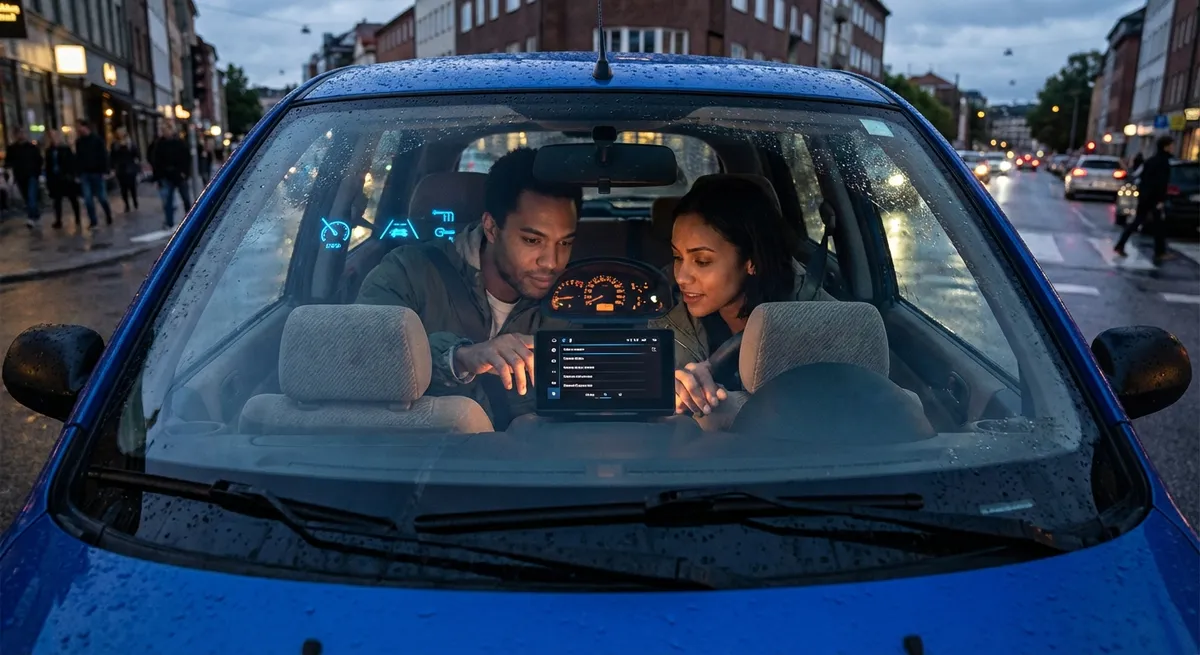
This guide walks through five practical, tech-focused adjustments you can make in almost any late-model car. They’re simple, often free, and aimed at owners who want real-world benefits, not just cool features.
Dial In Driver-Assistance (So It Helps You, Not Annoys You)
Advanced driver-assistance systems (ADAS) like lane-keeping, adaptive cruise, and collision alerts can be great—or so irritating that people shut them off completely. The sweet spot is customizing them so they work with how you actually drive.
Most modern cars let you adjust:
- Alert timing – Many models offer “early / normal / late” for forward collision warnings. If you’re getting constant false alarms in traffic, moving from “early” to “normal” can keep you safer and saner.
- Steering support strength – Lane-keeping assist usually has options for strong, medium, or mild steering input. If the wheel feels like it’s fighting you, turn the strength down or switch to “warning only” (chime + dash light, no steering).
- Adaptive cruise behavior – Adjust following distance to match your comfort level. A too-long distance on a busy highway can cause other drivers to cut in constantly; too short can feel unsafe. Try a middle setting and adjust from there.
- Blind-spot alert style – Some cars allow both visual and audible warnings, while others let you choose one. If the beeps annoy you, keep the light-only warning rather than disabling the system completely.
Action step:
- Park, turn the ignition on, and go through your Settings > Driver Assistance / Safety menus.
- Change one setting at a time, then test-drive on a familiar route.
- Keep what genuinely helps, dial back what distracts.
The goal: Systems that add an extra layer of protection without making you want to turn them off.
Use Built-In Apps and Data Instead of Your Phone Doing All the Work
Your car often has more connectivity than most owners realize—especially if it’s less than 5–7 years old. Letting the car handle some tasks can reduce distraction, save battery on your phone, and unlock features you’d otherwise ignore.
Features worth setting up properly:
- Factory navigation with live traffic – Even if you prefer Google Maps or Waze, using the built-in nav at least for turn-by-turn in the driver display or head-up display (HUD) keeps directions directly in your line of sight. Many cars now use cloud-based traffic data similar to phone apps.
- Built-in voice assistant – Factory voice recognition has improved dramatically. You can often say things like “I’m cold” or “Call Alex” without touching a screen, and the system will adjust climate or place a call. Learning 5–6 voice commands can reduce fumbling with menus.
- In-car Wi‑Fi hotspots – If your car offers a trial, set it up and try it on a road trip. Rear passengers can stream from the car’s data plan instead of your phone, and some vehicles use this connection for over-the-air (OTA) updates and live services.
- Driving data and trip logs – Many infotainment systems and companion apps show fuel/energy usage per trip, average speed, and efficiency trends. This is quietly powerful: watching how your driving affects consumption can help you spot patterns (like how much city traffic is costing you).
Action step:
- Download your carmaker’s official app and link your vehicle.
- Enable trip logging and, if available, fuel / EV efficiency tracking.
- For a week, check your trip data after your commute and see what simple habit changes cut your consumption (gentler starts, smoother braking, using eco mode in heavy traffic).
Set a Smart Charging and Battery Strategy (EV, PHEV, and 12V Owners)
Even if you don’t drive a full EV, your car depends heavily on smart power management. Small software settings can protect both your main propulsion battery (for EVs and plug-in hybrids) and your traditional 12‑volt battery.
For EV / PHEV owners:
- Limit daily charge to 80–90% – Most brands recommend not charging to 100% every day to reduce long-term battery degradation. Only use 100% for longer trips.
- Schedule charging for off-peak hours – Many utilities offer cheaper nighttime electricity rates. Use your car or charger’s app to start charging after those rates kick in.
- Precondition while plugged in – Use your app to heat or cool the cabin while the car is still charging. This saves range, because the energy for climate control comes from the grid, not the battery.
For all modern cars (gas, hybrid, or EV):
- Background power management – Many cars have settings like “Battery Protection,” “Power Saving Mode,” or “Auto Shut-Off.” Make sure:
- Interior lights don’t stay on indefinitely.
- The car will warn you or even shut down accessories before draining the 12V battery.
- Connected-car features vs. parasitic drain – Always-on connectivity, dashcams tied to the 12V, and constantly active OBD-II dongles can slowly drain batteries, especially if you don’t drive daily. Some cars let you reduce “always online” behavior in the settings or app—use that if the car often sits for days.
Action step:
- For EV/PHEV: Set a default charge limit (80–90%) in the car or app and create a scheduled charging window.
- For all cars: Check for a “Battery Protection” or “Power Saving” option in settings, and consider unplugging aftermarket devices if the car will sit unused for more than a few days.
Fine-Tune Display, Alerts, and Lighting for Night Driving
Night driving is where tech can either shine or become a distraction. Bright screens, aggressive alerts, and poorly tuned lighting can cause eye strain and fatigue.
Useful adjustments:
- Instrument and infotainment brightness – Set an automatic brightness mode but also adjust the minimum brightness for nighttime. Many cars let you dim to nearly black except for key info, which reduces glare and reflections on the windshield.
- Map display mode – Switch navigation to “Night” or “Auto” mode. A bright white map at night is fatiguing; darker themes are much easier on the eyes.
- Headlight auto high-beam sensitivity – If your car frequently flashes high beams at the wrong time or fails to dim for oncoming traffic, see if sensitivity can be adjusted—or switch to manual high beams if the system is unreliable in your driving environment.
- HUD layout and height – If you have a head-up display, trim the info to essentials (speed, next turn, maybe speed limit). Set the vertical position so you don’t have to look through it for normal driving—just a slight eye movement is ideal.
Action step:
- At night, park somewhere safe, turn on your lights, and go into Display / HUD / Brightness menus.
- Dim the screens until they’re just bright enough to read comfortably.
- Switch your nav to a dark theme, and on your next night drive, notice whether your eyes feel less strained.
Use Software Updates and Logs as a Quiet Preventive-Maintenance Tool
Many newer vehicles receive over-the-air updates or require dealership updates during service. These aren’t just for new features—they can quietly fix bugs, improve safety systems, and refine driving behavior.
Here’s how to treat software like maintenance:
- Turn on automatic update notifications – In the car or app, enable alerts for available updates. For OTA-capable cars, schedule installations overnight or when you won’t need the car.
- Read the release notes (briefly) – Scan for keywords like “battery,” “charging,” “braking,” “stability,” or “safety system.” Updates that touch these areas are worth installing promptly.
- Keep a basic service + software log – In a simple note on your phone, list:
- Date and mileage
- Dealer or app-based update version (if shown)
- Any noticeable changes (e.g., smoother shifting, better lane-keeping, fixed Bluetooth issue)
- Ask specifically about ECU/TCU updates at service – When you’re at the dealership, ask if there are technical service bulletins (TSBs) or software updates relevant to your VIN, especially for transmission, engine management, or safety systems.
Action step:
- Enable update notifications in your car’s settings or companion app.
- Next time you service the car, request that they check for and apply software/firmware updates, not just mechanical service.
Conclusion
Modern auto tech isn’t just about big screens and flashy features; it’s about small, thoughtful adjustments that make the car adapt to you. Tuning driver-assistance behavior, leaning on built-in connectivity, managing batteries intelligently, optimizing your displays for real-world conditions, and treating software updates like preventive maintenance can all make your car feel more refined, safer, and cheaper to run.
You don’t need to be a programmer or a hardcore enthusiast to get these benefits—just spend a little focused time in your settings and app, test changes on familiar roads, and keep what genuinely improves your drive.
Sources
- NHTSA – Overview of Advanced Driver Assistance Systems (ADAS) - Explains common driver-assistance features and their safety role
- U.S. Department of Energy – Electric Vehicle Charging FAQ - Covers best practices for charging EVs and plug-in hybrids
- U.S. Department of Energy – Fuel Economy: Driving More Efficiently - Details how driving behavior and trip patterns affect energy use
- Consumer Reports – Your Car’s Electric System and 12-Volt Battery - Practical guidance on avoiding dead batteries and managing electrical loads
- IIHS – Headlights and Night Driving - Research and recommendations on headlights, visibility, and nighttime safety