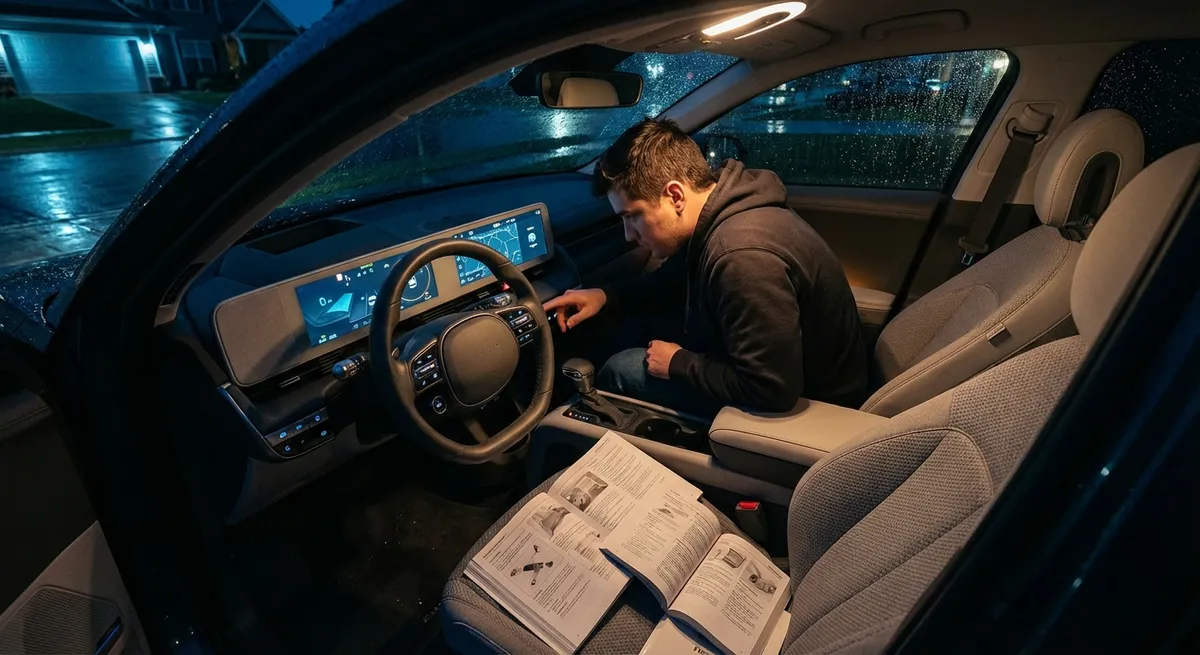
This guide focuses on practical, built-in auto tech features you can start using today. No major upgrades, no expensive add‑ons—just tools your car likely already has, and how to actually make them work for you.
1. Turning Your Phone Into a True Driving Hub (Not Just a Music Player)
For many drivers, “phone integration” stops at pairing Bluetooth. But most late-model cars support deeper integration through Apple CarPlay, Android Auto, or proprietary apps—and using them well can reduce distraction and make daily driving more efficient.
First, check your owner’s manual or the infotainment “Settings” → “Phone”/“Connectivity” menu to see what’s supported. If your car offers wireless CarPlay or Android Auto, set it up fully (permissions, notifications, and navigation access) instead of relying only on Bluetooth audio. Then, customize your app layout: hide non-driving apps (social media, games, email) so you’re not tempted, and keep navigation, music/podcasts, and messaging apps front and center.
Most systems let you customize notification behavior—turn off non-urgent alerts so your screen doesn’t constantly light up. Learn the voice commands for your platform (“Hey Siri,” “Hey Google,” or your car’s voice assistant) to send texts, change destinations, or call contacts without taking your hands off the wheel. If your automaker has a companion app (Toyota, Hyundai, Ford, GM, and others do), link your account so you can sync destinations from your phone to your car, schedule maintenance reminders, and sometimes even remotely check fuel/charge level. When set up correctly, your phone becomes the central command unit for your drive instead of a distraction generator.
2. Using Advanced Driver Assistance Without Letting It Drive You
Modern safety suites—often branded as Safety Sense, Co-Pilot, EyeSight, or similar—can feel confusing or intrusive. Many owners either ignore them entirely or leave them on default, even when the default settings don’t fit their driving style. A few minutes of fine-tuning can make these systems genuinely helpful rather than annoying.
Start by finding the dedicated safety or driver assist menu—usually under “Vehicle Settings” or “Driver Assistance.” Look for features like adaptive cruise control, lane keeping assist, blind-spot monitoring, rear cross-traffic alert, and forward collision warning. Each typically has adjustable sensitivity and behavior. If you find lane-keeping too aggressive, change it from “assist” (steering input) to “alert only” (chimes or steering wheel vibration), or reduce the lane departure sensitivity so it intervenes less on narrow roads.
For adaptive cruise control, set your preferred following distance and acceleration profile; many systems let you choose more “eco,” “normal,” or “sport” behavior. Test these on an open highway so you can get used to how the car responds. It’s also worth learning how to quickly enable/disable specific features—usually via a steering wheel button or a long-press of a menu control—so you’re not hunting through screens when conditions change. Think of these systems as adjustable tools: they can reduce fatigue on commutes and road trips, but only if they’re tuned to how you actually drive.
3. Customizing Drive Modes for Real-World Conditions
Most late-model vehicles offer selectable drive modes—often labeled Eco, Normal, Sport, Snow, Off-Road, or custom names specific to each brand. Many drivers leave them in “Normal” forever, but matching the mode to your conditions can meaningfully affect comfort, control, and even operating cost.
Eco or “Comfort” modes typically soften throttle response, reduce aggressive downshifts, and ease up on climate control intensity to save fuel or battery power. Use this setting for heavy traffic, city driving, or long highway stretches where quick response is less important. Sport or “Dynamic” modes sharpen throttle response, change transmission shift points, and sometimes adjust steering weight or suspension firmness if your car is equipped with adaptive systems. This mode is useful when merging, passing, or on twisty backroads where precise control matters.
Some cars allow a “Custom” or “Individual” mode. Spend time in the customization menu to build a profile: for example, you might want sporty throttle and steering, but comfort suspension and eco climate. If your car has terrain or weather-specific modes (Snow, Mud, Sand), don’t ignore them—these adjust stability control, traction settings, and torque distribution to help you maintain grip in low-traction conditions. The key is to think of drive modes as tools you choose intentionally for the road and weather you’re actually facing, not just a button you accidentally bump.
4. Making the Most of Built-In Vehicle Data (Instead of Guesswork)
Your car quietly collects a lot of data about how it’s being used—fuel economy, trip history, tire pressures, battery health (for hybrids/EVs), even driving style metrics in some models. Most owners only glance at the fuel gauge and odometer, but paying attention to a few key data points can save money and help spot problems early.
Start with the trip computer: reset it when you begin a commute or a long drive, then watch average fuel economy over different routes. You may find that one route is consistently more efficient, even if it’s not the shortest. Use tire pressure monitoring (TPMS) proactively—don’t wait for a warning light. Many cars have a screen that shows real-time pressure at each wheel; check this monthly or before long trips. Underinflated tires impact fuel economy and can overheat, while overinflated tires reduce grip and comfort.
If your car includes a battery state-of-charge or hybrid system display, learn what “normal” looks like on your regular drives. Sudden changes in how the system charges/discharges can be an early warning sign of battery or charging issues. Some brands also offer driving behavior scores (smooth braking, gentle acceleration, consistent speeds). Even if you’re not chasing a perfect score, watching these patterns can help you refine your technique for better efficiency and less wear on brakes and tires. Think of your car’s data screens as a diagnostic helper you consult regularly—not just when a warning light appears.
5. Using Remote and Automation Features to Simplify Daily Life
Remote tech isn’t just for flashy commercials; properly set up, it can quietly solve real annoyances in your daily routine. Many vehicles built in the last several years support some combination of remote start, climate preconditioning, remote locking/unlocking, and location services via key fobs or smartphone apps.
If you live in a region with hot summers or cold winters, learn how to enable scheduled preconditioning. In many EVs and some gas vehicles, you can set a departure time so the car automatically heats or cools the cabin while plugged in, reducing the energy hit once you start driving. Remote start, where legal and available, can do the same manually—just be sure to understand how long the engine will run by default and how it affects fuel use and local regulations.
Keyless entry and digital keys (where your phone acts as a key) can simplify sharing the car between family members. Set up separate driver profiles linked to each key or user: seat position, mirror angles, climate preferences, and even radio presets can adjust automatically when each person gets in. If your vehicle’s app supports geofencing or speed alerts, these can be genuinely useful for monitoring teen drivers or a shared family car without constant texting. Used thoughtfully, remote and automation features can shave friction out of your routine, from warming the car on winter mornings to making sure you really did lock it after rushing into the house.
Conclusion
Most cars on the road today already have more useful tech than their owners realize—it’s just hiding in menus, under vague buttons, or in thick manuals that rarely get opened. By taking a bit of time to:
- Fully integrate your phone as a driving tool
- Tame and tune driver assistance systems
- Match drive modes to conditions
- Pay attention to built‑in vehicle data
- And set up remote/automation features properly
you can turn existing hardware into everyday advantages—more comfort, less stress, better efficiency, and a clearer picture of how your car is really behaving.
You don’t need to be a software engineer or a track junkie to get value out of modern auto tech. You just need to treat your car’s digital features with the same respect you give its mechanical ones: understand them, configure them, and actually use them.
Sources
- [NHTSA – Driver Assistance Technologies](https://www.nhtsa.gov/equipment/driver-assistance-technologies) – Overview of common advanced driver assistance systems (ADAS) and how they function
- [IIHS – Front Crash Prevention and Other Crash Avoidance Features](https://www.iihs.org/topics/advanced-driver-assistance) – Research-based evaluations and explanations of various safety and driver-assist technologies
- [Apple CarPlay – Official Overview](https://www.apple.com/ios/carplay/) – Details on CarPlay capabilities, supported apps, and integration features
- [Android Auto – Official Site](https://www.android.com/auto/) – Explanation of Android Auto functionality, supported vehicles, and app ecosystem
- [U.S. Department of Energy – Fuel Economy Guide](https://www.fueleconomy.gov/feg/drive.shtml) – Practical tips on using driving behavior and vehicle features to improve efficiency