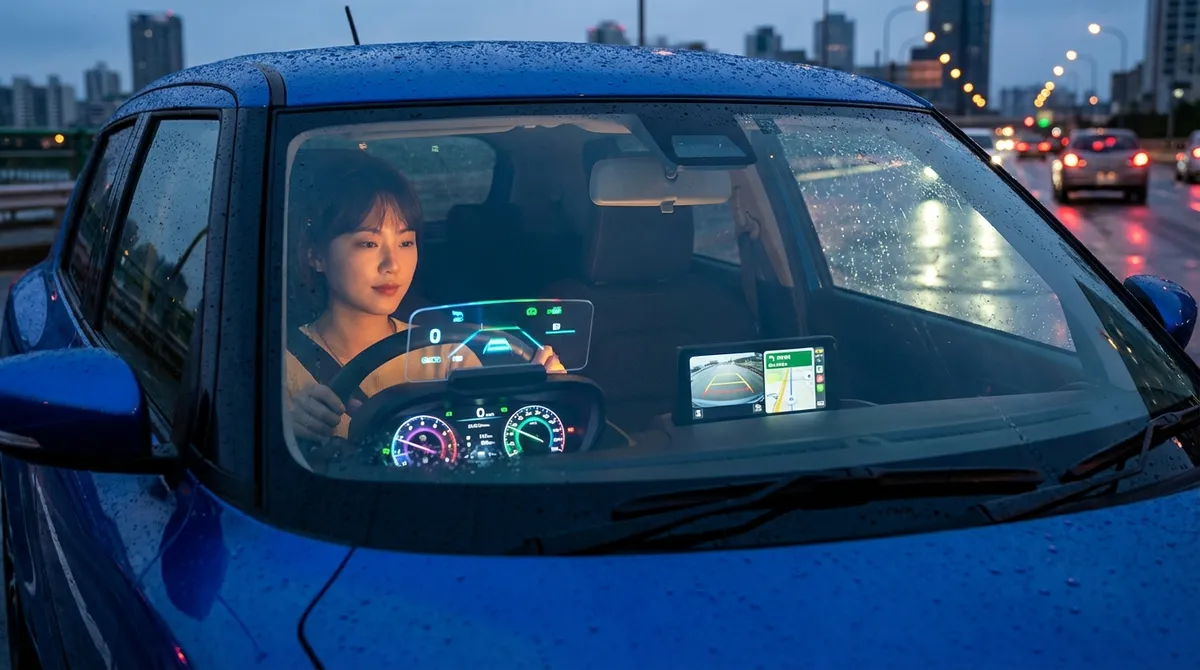
This guide breaks down five underused tech features many cars already have—and shows you how to put them to work in your daily drive.
Unlock More From Your Adaptive Cruise and Lane Assist
A lot of drivers try adaptive cruise control and lane-keeping once, get spooked, and never touch them again. Used correctly, though, they can cut fatigue and make long drives smoother and safer.
First, understand the limits. These systems assist—they don’t drive for you. Check your owner’s manual or the automaker’s website for the exact name and capabilities (e.g., “Honda Sensing,” “Toyota Safety Sense,” “Ford Co-Pilot360”). Some only work above certain speeds, some require clear lane markings, and most will disengage in sharp curves, bad weather, or if cameras/radar are blocked.
On a clear highway, start by setting a higher following distance than you think you need. Let the adaptive cruise handle speed changes, and notice how it responds when a car cuts in front of you or traffic slows. With lane-keeping, start with gentle assist settings if your car allows it, so you’re not surprised by strong steering corrections.
The key is to keep hands on the wheel, eyes up, and treat the system as a “second set of hands,” not a substitute. Over time, you’ll learn where it excels (steady highway runs) and where to turn it off (construction zones, poorly marked roads). This familiarity helps you use it confidently instead of ignoring a feature you already paid for.
Actionable step: On your next highway trip, dedicate 10–15 minutes to testing adaptive cruise and lane assist with full attention. Note when the system beeps, vibrates, or displays warnings so you know its language before you really need it.
Turn Your Infotainment Into a Real Driving Command Center
Most drivers use their infotainment like a big radio with Bluetooth. It can do more than that—if you set it up once, it pays off every day.
If your car supports Apple CarPlay or Android Auto (wired or wireless), use it. These systems generally offer better voice recognition, faster maps, and clearer navigation prompts than many built-in nav systems. Make sure your main navigation app (Google Maps, Apple Maps, Waze, etc.) is set as your default and that traffic and speed limit overlays are turned on.
Go into settings and customize your home screen. Put your most-used functions—navigation, audio, phone—on the first row so you’re not diving into menus while driving. If your car lets you assign favorites or shortcuts (often via a star icon, “Favorites,” or programmable softkeys), save your top destinations (home, work, gym) and most-used audio sources.
Don’t skip voice control. Spend five minutes learning the exact voice prompts that work best—things like “Navigate to [address]” or “Call [contact].” The more you rely on voice for calling, navigation, and audio changes, the less time you spend looking away from the road.
Finally, check for software updates. Many newer cars receive over-the-air updates; others require service visits or a USB stick. Updated software can fix bugs, speed up the system, add apps, or improve phone compatibility.
Actionable step: This week, park safely, connect your phone, and:
1) Add at least three favorite destinations,
2) Rearrange your infotainment home screen,
3) Practice three voice commands until they work reliably.
Use Built-In Cameras and Sensors as Real Parking Tools, Not Just Gadgets
Backup cameras and parking sensors are now standard on most modern vehicles—but a lot of drivers either ignore them or rely on them too much. Used correctly, they can reduce minor accidents and make tight spots easier.
First, adjust your camera views. Many cars let you switch between wide, normal, and top-down views. Wide is good for backing out of driveways and spotting cross-traffic; top-down or “surround view” is ideal for tight parking. Learn how to switch views quickly so you’re not fumbling when you really need it.
Use guidelines smartly. Dynamic guidelines that turn with the wheel show where your rear will go if you hold that steering angle. Try practicing in an empty parking lot: line up between two painted lines using only the guidelines, then step out and see how accurate you were. It’s a low-risk way to calibrate your eyes to what the screen is telling you.
With parking sensors, pay attention to tone patterns, not just the final “solid beep.” Different zones (front corners, rear corners, center) often have slightly different sounds or visual indicators. Learning those helps you know whether you’re about to bump a curb with the front lip, scrape a rear corner, or just getting close to the car behind you.
But don’t abandon your mirrors and head checks. Cameras can be washed out by sun, covered by snow, or blocked by dirt. Make it a habit to wipe camera lenses (usually under the badge or tailgate handle) and check that sensors are clear of mud or ice.
Actionable step: Find an empty lot and spend 10–15 minutes practicing:
– Backing into a space using only the camera and guidelines
– Parallel parking between cones or chalk marks using sensors and mirrors
You’ll be much more confident when real-world parking gets tight.
Use Driver Profiles and App Connectivity to Simplify Every Trip
If your car supports driver profiles and a companion smartphone app, you can turn a lot of everyday annoyances into set-and-forget automation.
Driver profiles typically store seat position, mirror angles, steering/wheel settings, radio favorites, and sometimes climate preferences. If more than one person drives the car, set up a dedicated profile for each driver, ideally linked to their key fob or phone. That way, when you unlock the car, it automatically adjusts instead of you fiddling with controls every time.
If the car has a smartphone app, take advantage of remote features. Remote start and climate control are more than a winter luxury—they help on hot days too, pre-cooling the cabin so you’re not blasting max A/C once you’re in motion. Some apps let you send destinations from your phone directly to the car’s nav, lock or unlock doors, or check if windows are left open.
Many apps also display fuel level, battery charge (for EVs/hybrids), and tire pressures. Instead of discovering a near-empty tank or low tire when you’re already late, you can check your phone the night before a long trip and handle issues in advance.
Don’t forget security features. Some systems provide vehicle location, alerts if the car is moved, or notifications when doors are unlocked. If you park on the street or leave the car at airports frequently, these can give you both peace of mind and useful information if something goes wrong.
Actionable step: Today, set up at least one driver profile and log into your vehicle’s official app. Enable notifications for lock/unlock and, if available, low fuel or low tire pressure alerts.
Treat Your Car’s Digital Alerts Like a Preventive-Maintenance Checklist
Modern cars generate a lot of messages—service reminders, tire pressure alerts, driver-assistance warnings, and more. Many owners either ignore them or panic about every light. Instead, treat them as a prioritized checklist.
Start by reviewing your owner’s manual or digital manual in the infotainment system. Look for a section that explains dashboard symbols and warning colors. Usually:
- Red = immediate attention (stop safely)
- Yellow/amber = service or inspection needed soon
- Blue/green/white = informational (systems active)
Oil-life monitors and service interval reminders are often more accurate than just following a strict mileage number, because they factor in time, temperature, and driving conditions. When you get a “Service Due Soon” or “Oil Life 15%” alert, use it to plan ahead: schedule a visit or, if you DIY, order parts so you’re not pushing maintenance past safe limits.
Pay special attention to tire-pressure monitoring system (TPMS) alerts. A single low tire light likely means a slow leak, seasonal temperature change, or recent pothole hit; all tires blinking or reading zero can suggest a sensor or system issue. Get in the habit of checking actual PSI readings (many newer cars show them per tire in the instrument cluster) instead of just dismissing the warning.
Finally, note and photograph any intermittent warnings, especially for advanced driver-assistance systems (like “Front Camera Obstructed” or “Radar Sensor Blocked”). If the warnings are frequent, you can show your mechanic or dealer exact messages and timestamps, which makes diagnosis far easier.
Actionable step: Next time you’re parked, scroll through your instrument cluster menus and find:
– The service interval/oil-life screen
– The tire-pressure display
– Any stored warnings or messages
You’ll know where to look when something pops up on the road.
Conclusion
Your car is already packed with tech that can make driving safer, easier, and more enjoyable—you just need to turn those “nice-to-have” features into everyday tools. By learning your assistance systems’ limits, optimizing your infotainment, mastering cameras and sensors, using profiles and apps, and treating alerts like a smart checklist, you get more value out of the vehicle you already own.
None of this requires new hardware—just a bit of time, some experimentation in safe conditions, and a willingness to explore your car’s menus and manuals. The payoff is a drive that feels more modern, more controlled, and better tailored to how you actually use your car.
Sources
- [NHTSA – Advanced Driver Assistance Systems (ADAS)](https://www.nhtsa.gov/vehicle-safety/advanced-driver-assistance-systems) - Overview of common driver-assistance features and their safety role
- [IIHS – Front Crash Prevention and Other Crash Avoidance Technologies](https://www.iihs.org/topics/advanced-driver-assistance) - Research and explanations of how modern safety tech works and its effectiveness
- [U.S. Department of Transportation – Back-Up Cameras and Rear Visibility](https://www.transportation.gov/fastlane/behind-rule-backup-cameras) - Background on backup camera requirements and safety benefits
- [Edmunds – Car Infotainment Systems Guide](https://www.edmunds.com/car-technology/what-is-an-infotainment-system.html) - Practical breakdown of infotainment features, CarPlay/Android Auto, and setup tips
- [SaferCar.gov – Tire Pressure Monitoring Systems](https://www.nhtsa.gov/equipment/tires#tire-pressure-monitoring-systems-tpms) - Official information on TPMS alerts, how they work, and why they matter