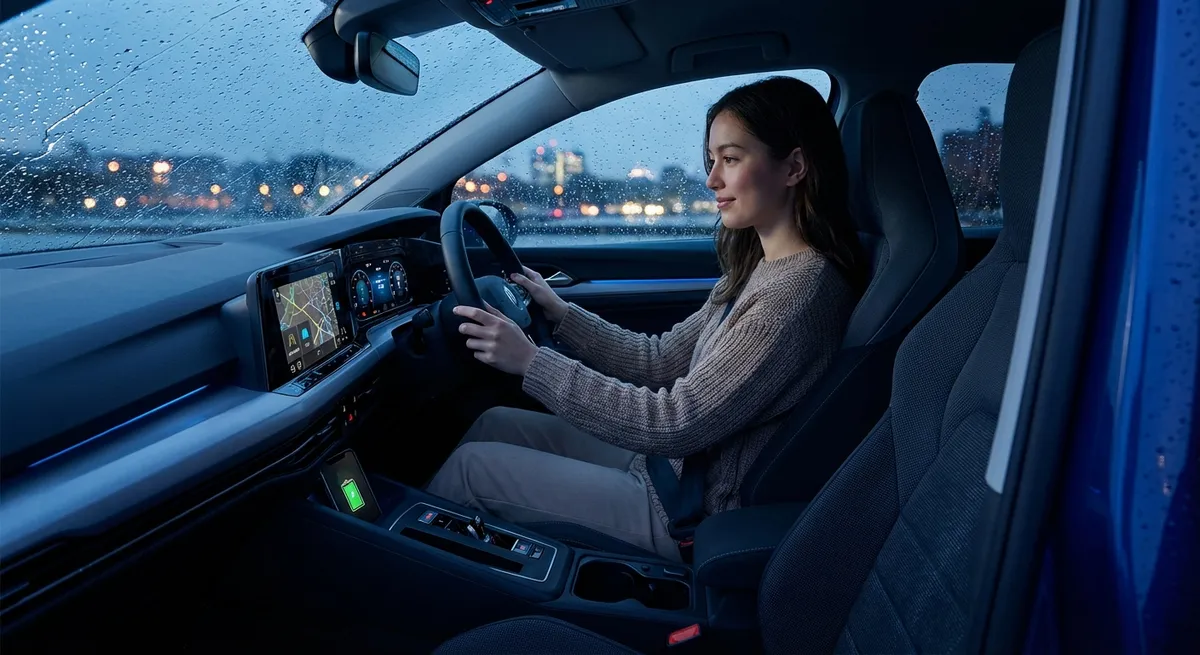
This guide walks through five practical tech features many cars already have, how to set them up, and how to use them in real life. No hype—just tools that make everyday driving easier.
Unlocking Safety with Advanced Driver Assistance Systems (ADAS)
Most newer cars come with some mix of lane-keeping, adaptive cruise control, automatic emergency braking, blind-spot monitoring, and rear cross-traffic alert. Together, these are often labeled as an “advanced safety suite” or ADAS package.
The value isn’t just in turning them on once; it’s in calibrating them for how you actually drive. Many owners either leave factory settings (which might feel intrusive) or shut everything off. A better approach is to fine-tune:
- Adjust warning sensitivity in your settings menu (often under “Driver Assistance” or “Safety”). If lane-departure warnings are beeping constantly on narrow streets, switch from “High” to “Normal” or “Low” or change from steering assist to vibration-only.
- Use adaptive cruise properly on highways, not surface streets. Set a following distance you’re comfortable with and keep your foot ready—these are assist systems, not autopilot.
- Check camera and sensor visibility regularly. Clean the windshield in front of cameras and wipe radar sensors in the grille or behind badges; dirt, ice, and bug splatter can disable safety features.
- Understand what each icon means. Your owner’s manual will show the exact symbols that appear when a system is active, temporarily disabled, or malfunctioning. Spend 10 minutes with that chart—it pays off when a light pops up mid-drive.
Actionable point #1:
Go into your car’s “Driver Assistance” or “Safety” menu this week and customize each ADAS feature—warning type, sensitivity, and steering support—so that you actually leave them on instead of disabling them.
Using Your Phone as a Safe Driving Tool (Not a Distraction)
Phone integration can either make your driving safer or much worse. The difference is in how you set it up.
Apple CarPlay and Android Auto are more than just prettier music screens. When configured well, they reduce the need to touch your phone at all:
- Limit apps to what you truly need while driving: navigation, music/podcasts, calls, messages read aloud. Avoid using messaging apps that encourage long replies; stick to voice responses or canned replies.
- Turn on Do Not Disturb While Driving (or similar) in your phone settings. Let emergency contacts bypass it, but silence everyone else automatically when the car is moving.
- Use voice commands first, not touch. Practice simple phrases: “Navigate to home,” “Call Sarah,” “Play my driving playlist.” The more you use voice, the less you’re tempted to pick up the phone.
- Cable vs. wireless: if your car supports wireless CarPlay/Android Auto but your battery drains fast, run a charging cable for long trips. Tech only helps if your phone stays alive.
Actionable point #2:
Configure your phone’s Do Not Disturb While Driving mode and customize allowed contacts. Then commit to making all in-car calls, music changes, and navigation changes via voice commands—not touch.
Getting Real Fuel Savings from Live Driving Data
Most cars now give you real-time fuel economy readouts, trip summaries, and eco-driving feedback, but many drivers ignore the numbers or treat them as a novelty. Used right, they can directly lower your fuel bill.
Here’s how to leverage in-car data (or an OBD-II Bluetooth dongle with an app) for practical savings:
- Watch your “instant MPG” or “fuel consumption” graph in light traffic once in a while. Notice how hard acceleration and heavy braking destroy your efficiency.
- Use trip average fuel economy as a “score” to beat on regular routes. Try smoother inputs, earlier lifting off the throttle, and consistent speeds to improve your average over time.
- Monitor tire-pressure warnings and respond quickly. Underinflated tires increase rolling resistance, hurting both economy and tire life. Check with a gauge; don’t just rely on the dash number.
- Log fuel-ups and miles (your car’s app may already do this). Spotting sudden drops in fuel economy can help you catch issues early—sticking brakes, failing oxygen sensors, or low tire pressure.
Actionable point #3:
Pick one regular commute or weekly drive and use your trip-average fuel economy as a benchmark. For the next month, drive that route with smoother acceleration and earlier braking, and aim to improve the number by a small, specific margin (e.g., 1–2 mpg or 0.5–1 L/100 km).
Making the Most of Built-In Apps and Connected Services
Connected services—via your car’s embedded SIM or tethered phone—often get set up once at delivery and then forgotten. But many include features you can actually use weekly:
- Remote start with climate control: Preheat or precool the cabin without idling for ages after you get in. Use this in extreme weather but be mindful of local idling laws and garage safety (always outside or well-ventilated).
- Remote locking/unlocking: Great if you frequently forget whether you locked the car or need to let someone drop something in the trunk while you’re away.
- Vehicle locator and last-parked location: Helpful in large parking lots; many apps mark where your car was last turned off and can guide you back.
- Service reminders and digital records: Some apps track maintenance, upcoming service intervals, and dealer recalls. Having this in one place helps keep your maintenance schedule on track.
- Over-the-air updates: If your car supports them, updates can improve system stability, add small features, or fix bugs in infotainment and safety systems. Check update notes before installing and schedule them when you don’t need the car.
Actionable point #4:
Install your carmaker’s official app (if available), log in, and test three features today: remote lock/unlock, vehicle location, and checking service status or recall info. Add a reminder to open the app at least once a month.
Setting Up Custom Profiles and Shortcuts for Everyday Ease
Many cars now support driver profiles tied to seat position, mirrors, steering feel, drive modes, and even radio presets. Used right, these make the car feel “yours” every time you get in—and reduce distraction while driving.
Simple optimizations you can set and forget:
- Create named driver profiles (e.g., “Alex Daily,” “Highway,” “Towing,” “Partner”). Assign seat/mirror positions, steering weight, and instrument cluster views to each.
- Build shortcut buttons or tiles: Some systems let you pin your most-used functions (defogger, heated seats, favorite nav destinations) to a home screen or physical button.
- Adjust display brightness and layout: Dim night mode to reduce eye strain, and configure the cluster to show what matters to you—speed, speed limit, navigation, or fuel data.
- Save climate preferences: Auto mode temperature, fan speed limits, and whether the A/C auto-engages on start. Comfort plus consistency means you fiddle with settings far less while driving.
- Use key-linked profiles if supported: Each key fob can pull up a different profile automatically, so shared cars always start in the right setup for the person driving.
Actionable point #5:
Create at least one named driver profile and configure your seat, mirrors, cluster layout, and top three shortcuts (e.g., favorite destination, heated seat, defrost). This reduces the need to poke through menus while driving.
Conclusion
Most useful car tech is already in your driveway—you just need to turn it into a tool instead of a background gimmick. By customizing driver assistance systems, tightening up how you use your phone, paying attention to live fuel data, activating connected services, and dialing in personal profiles, you can quietly make every drive safer, cheaper, and more comfortable.
You don’t have to learn everything in one day. Work through these five areas over a couple of weeks, and treat each feature you enable as something you’ll actually use, not just something your car happens to have.
Sources
- NHTSA – Driver Assistance Technologies - Overview of common ADAS features and how they support safer driving
- IIHS – Rear automatic braking and other crash avoidance features - Research on effectiveness of various driver assistance systems
- U.S. Department of Energy – Fuel Efficient Driving Tips - Evidence-based guidance on how driving behavior affects fuel consumption
- Apple – Use Do Not Disturb While Driving - How to configure and use iPhone’s driving-focused distraction reduction
- Android – Turn on Android Auto and driving mode - Official instructions for setting up Android Auto and driving mode features