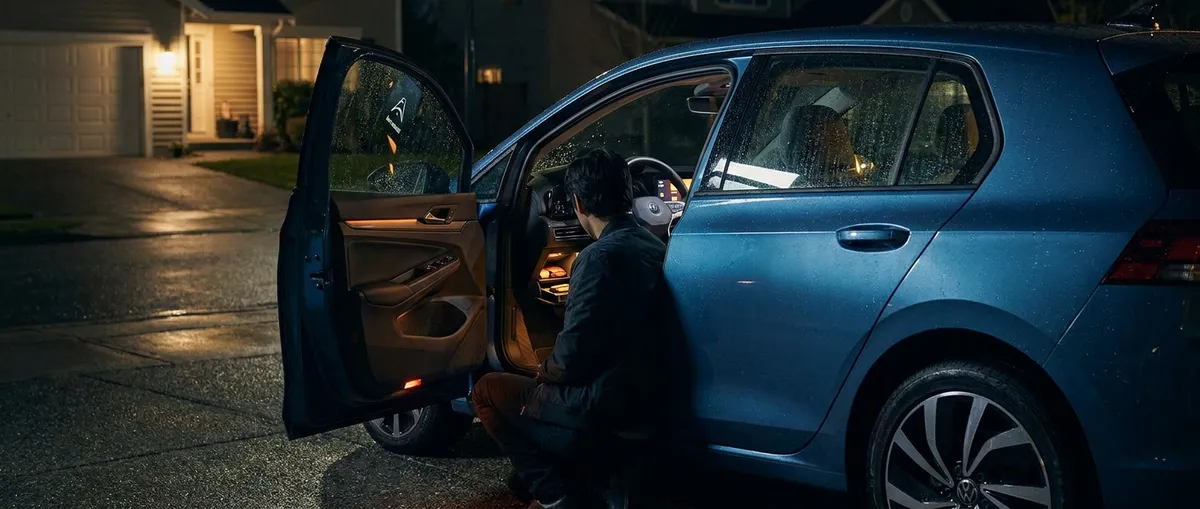
Each section includes one actionable thing you can do today, plus context so you actually understand what you’re changing.
Make Your Safety Tech Work the Way You Drive
Advanced driver-assistance systems (ADAS) like lane-keep assist, blind-spot monitoring, and automatic emergency braking usually come turned on—but not always set up well for real driving. Many drivers either ignore them or turn them off because the alerts feel annoying or intrusive. With a few tweaks, these systems can go from “naggy” to genuinely helpful.
Start with your vehicle’s driver-assistance settings menu (often under “Driver Assistance,” “Safety,” or “Vehicle” on the infotainment screen). Look for options like lane-departure alert intensity, steering support level, and blind-spot alert type (light-only vs. audible). If lane-keep assist feels too aggressive, reduce steering intervention but keep visual/audible alerts on so you still get a warning without the “fighting the wheel” feeling. For blind-spot alerts, confirm both sides are active and that the timing is set to “standard” or “early” rather than “late” so you’re warned before starting a lane change.
Also check forward collision warning distance. If you do a lot of highway driving, a “medium” or “far” setting gives you time to react to sudden slowdowns ahead; in dense city driving, “near” might cut down on constant beeping. Finally, make sure automatic emergency braking and rear cross-traffic alert are enabled—many cars allow these to be turned off by previous drivers or service technicians. The goal isn’t to let the car drive for you; it’s to tune the tech so it supports your natural driving style instead of fighting it.
Actionable point #1:
Spend 10–15 minutes in your safety/driver-assistance menu and adjust:
- Lane-keep/lane-departure sensitivity
- Blind-spot and rear cross-traffic alerts
- Forward-collision warning distance
Keep alerts on, but dial in levels that feel natural so you’ll actually leave them activated.
Use Your Phone as a Real Car-Management Tool, Not Just for Music
Most people connect their phone for calls and podcasts, then stop there. But your car’s official app plus Apple CarPlay or Android Auto can quietly solve everyday annoyances: losing your car in a parking lot, forgetting maintenance, or driving around with mystery warning lights on.
If you haven’t already, install your vehicle’s official smartphone app (from the manufacturer, not a random third-party tool). After pairing it with your car account, look for features like remote lock/unlock, fuel or battery level, tire pressure status, and “find my vehicle.” Many newer models also show basic diagnostic alerts—if a check engine light appears, the app may give a plain-language description (“Evap system leak detected”) instead of just a hard-to-read code on the dash. Some apps log maintenance history or show upcoming service items based on mileage.
On the in-car side, take advantage of CarPlay or Android Auto’s driving-focused apps: real-time traffic navigation, EV charging locators (for plug-in or full EV owners), and hands-free voice commands for texts and calls. Set up your primary navigation app preferences—like avoiding tolls or prioritizing fastest vs. eco routes—so you spend less time fumbling with settings while driving. This phone-car integration is less about “bells and whistles” and more about cutting friction from daily use.
Actionable point #2:
Download and set up your manufacturer’s official app and:
- Enable location and “find my vehicle”
- Turn on notifications for service and recalls
- Check if it displays tire pressures, fuel/battery level, and basic warnings
Then configure CarPlay/Android Auto with your preferred navigation and a small set of frequently used apps.
Turn On Fuel- and Battery-Saving Tools You Probably Ignored
Fuel economy and EV range aren’t just about how you drive—they’re also about how your car’s tech is configured. Most vehicles built in the last several years include eco-driving aids and energy usage displays that can save meaningful money if you pay attention to them for even a week or two.
First, locate your trip computer or “eco” display screen. Many cars can show real-time fuel economy, average economy, and sometimes a simple driving score based on acceleration and braking smoothness. EVs and plug-in hybrids often show which systems are consuming the most power (climate control, acceleration, accessories). Spend a few days watching how hard accelerations, tailgating, and heavy A/C use impact these numbers—you’ll quickly see the patterns.
Next, check whether your car has an “Eco” or “Efficiency” driving mode. When enabled, this may soften throttle response, adjust shift points on automatics, or reduce A/C load. It won’t turn your car into a slug, but it can noticeably improve mileage in city or commuting conditions. Some cars also offer a “coasting” or “sailing” function that lets the car roll freely when you lift off the accelerator instead of engine braking immediately; this can help on light downhill stretches.
Finally, explore scheduling or preconditioning on EVs and some plug-in hybrids: you can pre-heat or pre-cool the cabin while still plugged in, so the energy comes from the grid, not your battery. That translates directly into more usable range.
Actionable point #3:
Enable your car’s eco/efficiency mode for a full tank (or a full week in an EV) and:
- Monitor the real-time fuel/energy screen while you drive
- Note how gentle throttle and earlier braking change the displayed consumption
- For EVs/PHEVs, set up one daily preconditioning schedule while plugged in
Use what you learn to lock in a smoother, cheaper driving style.
Turn Your Backup Camera into a Real Parking and Towing Tool
Backup cameras became mandatory in the U.S. in 2018, but most owners only use them as a simple “don’t hit what’s behind you” device. Modern camera systems usually offer adjustable guidelines, multiple views, and trailer-assist tools that can make parking in tight spaces or aligning a trailer hitch dramatically easier.
Start by exploring all camera views when you’re in reverse: you may have buttons on the screen or near the shifter to switch between wide-angle, normal, top-down (or “bird’s-eye” if you have a 360° system), and sometimes a zoomed-in hitch view. Learn what each one is best for—wide-angle to catch cross-traffic in parking lots, top-down for precise curb distance, hitch view for towing hookup. In many models, you can adjust the position or width of parking guidelines in the settings menu so they better match where your car actually sits in a space.
If you tow, look for trailer features in your vehicle settings or towing menu: some trucks and SUVs allow you to store trailer profiles, set up trailer backup guidance lines, or even use steering input overlays that show where the trailer will go. For tight urban parking or narrow driveways, practice using the top-down or surround-view modes a few times somewhere low-stress, like an empty lot, until judging distances becomes second nature.
Actionable point #4:
With the car stationary and in reverse (foot on the brake), cycle through every available camera view and:
- Identify the best view for straight parking vs. parallel parking
- Turn on or adjust guidelines to align with typical parking spaces
- If you tow, test the hitch or trailer-assist view and save a trailer profile if available
Then use these views intentionally the next few times you park, not just as a quick glance.
Customize Your Car’s “Personality” So It Works With You
Beyond the big tech features, many smaller configurable settings shape how you interact with your car every day: how fast doors lock, how long headlights stay on, whether the car beeps when you lock it, and how aggressively it holds the lane or reacts in traffic. Most people leave these at factory defaults, even when they don’t like how the car behaves.
Dive into your vehicle settings menu and look for options under headings like “Convenience,” “Lighting,” “Door Locks,” or “Comfort.” Common useful tweaks include enabling automatic locking when you shift out of Park (or at a certain speed), and automatic unlocking when you shift to Park or open the driver’s door. You can often adjust how long “follow-me-home” headlights stay on after you lock the car at night—great if you regularly walk from your driveway to a dark front door. Some vehicles allow you to change whether turn signals flash 3, 5, or 7 times on a light tap of the stalk, which can make lane changes smoother.
If your car has a driver profile system tied to the key fob or user account, take time to set one up. These profiles can store seat/mirror positions, preferred drive mode, radio presets, climate preferences, and even driver-assistance settings. That way, the car feels familiar and predictable every time you get in, even if other family members also drive it. This customization might feel like “nice-to-have” at first, but it removes small daily irritations that add up when you spend serious time behind the wheel.
Actionable point #5:
Create or edit your driver profile and adjust:
- Auto lock/unlock behavior
- Headlight “follow-me-home” duration
- Turn-signal tap flashes and any welcome/goodbye chimes
Save these under your profile so the car feels consistently “set up” for you, not the factory defaults.
Conclusion
Modern car tech doesn’t just live in splashy ads about self-driving features—it’s in the practical, often hidden settings that shape how safe, efficient, and comfortable your daily drive feels. By spending a little focused time in your car’s menus, you can transform it from a generic setup into something tailored to how you actually drive and live.
You don’t need to learn every feature at once. Pick one area—safety alerts, phone integration, efficiency tools, camera views, or convenience settings—and tune it this week. Then, the next time you’re idling in your driveway or waiting in a parking lot, explore the next category. The tech is already in your car; this is how you finally get your money’s worth out of it.
Sources
- NHTSA – Driver Assistance Technologies – Overview of common ADAS features and how they support safer driving
- U.S. Department of Energy – Fuel Economy Guide – Practical tips on driving and vehicle features that improve fuel efficiency
- Consumer Reports – How to Use Your Car’s Advanced Safety Features – Guidance on configuring and getting the most from modern safety tech
- AAA – Making Sense of Your Car’s Driver Assistance Features – Clear explanations of ADAS capabilities and limitations
- Edmunds – Smartphone Apps That Work With Your Car – Overview of manufacturer apps and connected services for modern vehicles