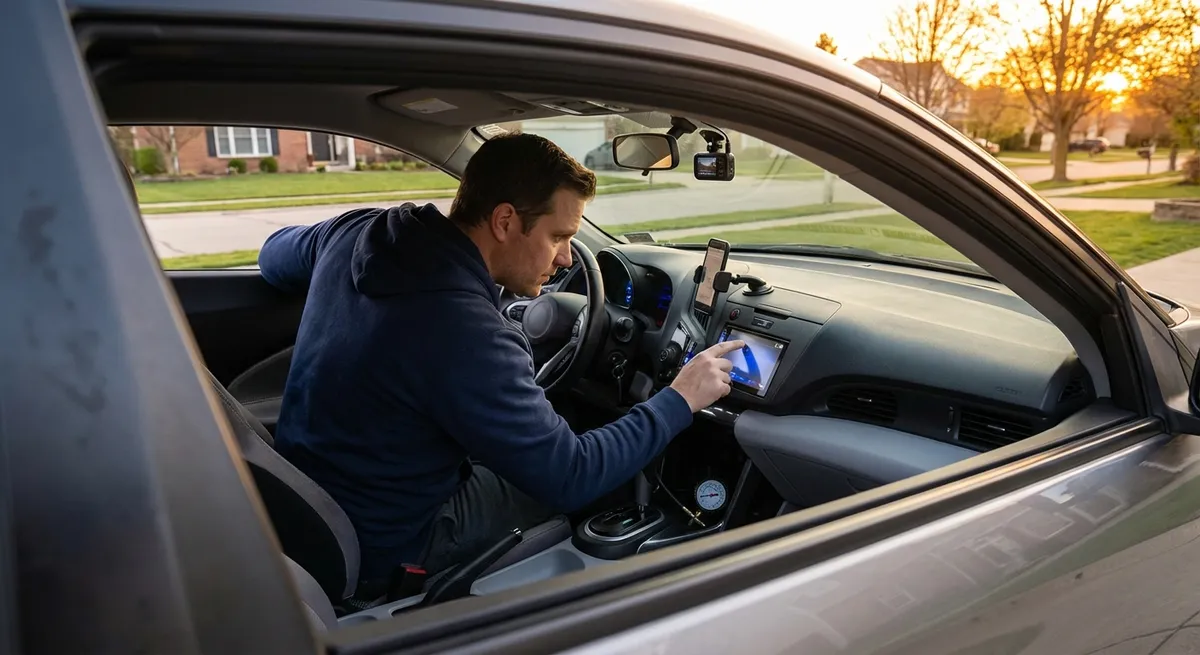
Make Your Phone and Car Work as a Single System
Your smartphone is already the “brain” of your digital life; when it’s properly integrated with your car, it can simplify driving instead of distracting you.
First, fully set up Apple CarPlay or Android Auto if your vehicle supports it—don’t just plug in and go. Take five minutes in your driveway to customize the home screen: move your most-used navigation, audio, and messaging apps to the front row and hide anything you don’t need while driving. Turn off non-essential notifications so only calls and navigation alerts make it through.
If your car doesn’t have built-in smartphone integration, a quality Bluetooth adapter or a head unit upgrade can bring older vehicles into the modern era for a few hundred dollars or less. Prioritize units that support hands-free calling, steering-wheel controls, and voice assistants. Finally, set up “Do Not Disturb While Driving” (on iOS) or “Driving Mode” (on Android) so your phone auto-mutes distracting alerts when it detects you’re in motion—this protects you and dramatically reduces “just a quick look” temptation.
Actionable point #1: Treat your phone and car as one connected system—fully configure CarPlay/Android Auto (or a Bluetooth head unit), customize what you see, and enable driving-specific notification settings before your next trip.
Turn Navigation into a Smart Driving Assistant, Not Just a Map
GPS today can do much more than get you from A to B—it can help you drive smoother, safer, and often more efficiently.
Start by using live-traffic navigation even for familiar routes during commute hours. Apps like Google Maps, Waze, and Apple Maps constantly adjust for congestion, construction, and crashes, often saving you time and fuel by avoiding stop‑and‑go conditions. Turn on speed-limit display if your system supports it; this helps you avoid unintentional speeding, especially in changing zones or unfamiliar areas.
Go a step further and explore route preferences: many apps let you prioritize fuel-efficient routing, avoid tolls, or favor major roads. For long trips, use the “add stop” function to plan fuel, food, and rest breaks at safe, well-rated locations instead of waiting until you’re low on gas or exhausted. If you drive an EV or plug‑in hybrid, learn how your app or built‑in system handles charger locations and state-of-charge estimates; this reduces range anxiety and keeps you away from slow or unreliable charging spots.
Actionable point #2: Configure your navigation app with live traffic, clear speed-limit display, and personalized routing (fuel-efficient or EV-aware) so every drive uses smarter, safer routes by default.
Use Driver-Assistance Features Intentionally (Not on “Autopilot”)
Driver-assistance systems like adaptive cruise control, lane-keeping assist, and blind-spot monitoring can reduce fatigue and enhance safety—if you understand their limits and use them deliberately.
Start with your owner’s manual or the automaker’s online how‑to videos and focus on three questions: What does each system actually do? Under what conditions might it turn off or get confused (sharp curves, poor lane markings, heavy rain, glare)? How does the car tell you it’s reached its limit? This helps you avoid over-trusting the tech and keeps you ready to take control immediately.
Calibrate alerts to your comfort level. If lane-departure warnings feel too “jumpy,” see if you can switch from steering intervention to vibration or sound, or slightly widen the sensitivity zone. For adaptive cruise, set following distance to a moderate or longer gap—this improves safety, and the system can manage speed changes more smoothly, which can also help fuel economy. Above all, treat these systems as support tools, not replacements for your attention; your hands and eyes are still in charge.
Actionable point #3: Learn each driver-assistance feature’s exact behavior and limits, then customize alert types and sensitivity so the tech supports your driving style without becoming annoying or misleading.
Add Focused Aftermarket Tech Instead of Random Gadgets
You don’t need to turn your cabin into a gadget museum. A few well-chosen aftermarket upgrades can deliver clear benefits without clutter or complexity.
If your car lacks a backup camera or parking sensors, consider a reputable camera kit that integrates with your existing screen or includes a modest dedicated display. Look for units with good low-light performance and clear distance guidelines. For older vehicles with no modern safety tech at all, a dash cam can be one of the highest-value additions—it can document incidents, deter fraud, and provide useful driving footage for review. Choose a model with loop recording, impact detection, and solid storage options.
For comfort and convenience, think in terms of systems rather than one-off gadgets. A robust multi-port USB or USB‑C charger with enough power for all passengers is more useful than a pile of cheap adapters. A high-quality magnetic or clamp-style phone mount placed at eye level can keep navigation in view without blocking the airbag or your road view. Finally, if you live in an area with theft concerns, consider a subtle OBD-II tracker or connected alarm system that ties into your phone for real-time alerts rather than relying only on a basic factory alarm.
Actionable point #4: Choose 1–2 aftermarket upgrades that solve specific problems—such as a backup camera, dash cam, or quality phone integration—rather than adding random gadgets that consume space without improving your drive.
Use Vehicle Data to Anticipate Problems Instead of Reacting to Them
Your car constantly generates information; using that data proactively can prevent small issues from becoming major repair bills.
Begin with the basics: learn how to access your vehicle’s built-in info screens (trip computers, tire-pressure monitoring, oil-life indicators, and maintenance reminders). Check these once a week, not just when a warning light comes on. If your car supports connected services (via an app or subscription), set up maintenance and recall notifications so you’re alerted early to service needs or safety campaigns.
For DIY‑minded owners or those with older vehicles, an inexpensive OBD-II scanner or a Bluetooth OBD dongle paired with a reputable app can decode check‑engine lights and log data such as engine temperature, misfire counts, and emission-related issues. While you may still need a professional for repairs, having clear codes and historical data can make shop visits more efficient and help you avoid unnecessary parts swapping. Over time, noticing patterns—like slightly low tire pressures each month or gradually worsening fuel economy—can alert you to slow leaks, alignment issues, or engine tune problems before they escalate.
Actionable point #5: Build a simple “data routine”: check your car’s onboard info weekly, enable app-based maintenance and recall alerts, and consider an OBD-II tool so you can understand issues and act before they become expensive.
Conclusion
Car tech doesn’t have to be overwhelming or reserved for luxury models. When you treat your phone and car as one system, let navigation work smarter, use driver-assistance features intentionally, choose targeted aftermarket upgrades, and pay attention to the data your vehicle provides, everyday driving becomes noticeably safer, calmer, and more efficient. You don’t need to change who you are as a driver—just let the tools you already have do their job a little better, one practical tweak at a time.
Sources
- [National Highway Traffic Safety Administration (NHTSA) – Driver Assistance Technologies](https://www.nhtsa.gov/equipment/driver-assistance-technologies) - Explains major driver-assistance systems, their functions, and limitations
- [U.S. Department of Transportation – Intelligent Transportation Systems](https://www.its.dot.gov/) - Covers how connected and smart transportation technologies improve safety and mobility
- [Apple – Use CarPlay with your iPhone](https://support.apple.com/en-us/HT205634) - Official guide on setting up and customizing Apple CarPlay in compatible vehicles
- [Google – Use Android Auto](https://support.google.com/androidauto/answer/6348019) - Official instructions for configuring Android Auto and supported features
- [Consumer Reports – Guide to Car Safety Features](https://www.consumerreports.org/cars/car-safety-features/guide-to-car-safety-features-a3513221319/) - Independent overview of in-car tech, active safety systems, and what shoppers should understand