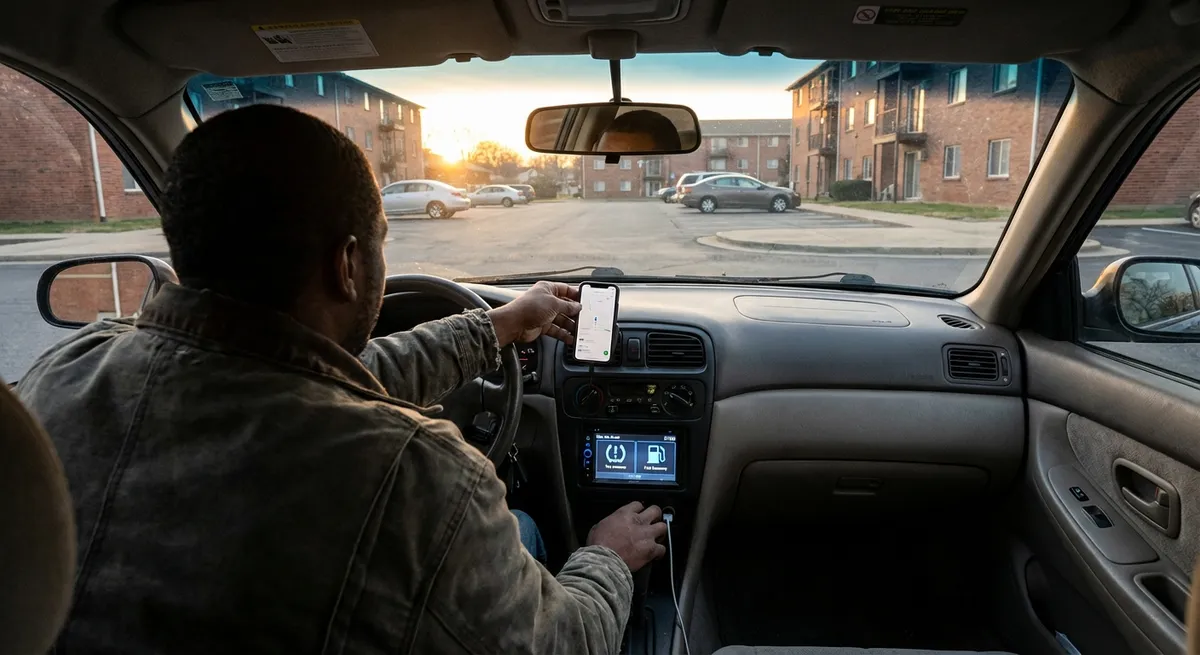
Make Your Driver-Assist Systems Work With You, Not Against You
Advanced driver-assistance systems (ADAS) like lane-keeping assist, adaptive cruise control, and blind-spot monitoring can be game changers—if you tune them to your actual driving style.
Most owners never dive past the default settings. That’s a missed opportunity.
Actionable steps:
- Adjust sensitivity, don’t just turn features off.
If lane-keeping keeps “fighting” you, go into the settings menu and look for options like “late/early” warning or “high/low” sensitivity. Dial it back rather than disabling it entirely—this preserves a safety net without constant nagging.
- Match adaptive cruise following distance to real traffic.
If your car lets you choose “near/medium/far” or icon-based distances, experiment on an open highway. Too far, and people constantly cut in; too close, and you’re uncomfortable. Set it once for your region’s traffic style and leave it.
- Customize alerts to what actually helps you.
Turn off redundant chimes (like both visual and audio for the same thing) if they irritate you, but keep the high-value alerts: forward collision warning, pedestrian warning, or rear cross-traffic alerts.
- Test changes in low-stress conditions.
Try new settings on a quiet road or during a low-traffic time, so you can feel how your car behaves without surprises in heavy traffic.
- Revisit settings after software updates.
Many newer cars receive over-the-air or dealer-installed updates that can reset preferences or add features. After a service visit, quickly review your driver-assist menus.
By fine-tuning instead of opting out, you keep the safety benefits while avoiding that “the car is driving me” feeling.
Turn Your Phone Into a Smart Extension of Your Car
Your smartphone is often more powerful and up-to-date than your built-in infotainment system. Used correctly, it becomes a seamless extension of your car instead of a distraction hazard.
Actionable steps:
- Use CarPlay or Android Auto as your default interface.
If your car supports Apple CarPlay or Android Auto, connect via USB or wireless and keep it that way. You’ll get current maps, traffic, and your own apps, all integrated into the car’s screen and controls.
- Pre-drive setup: 30 seconds before you shift into gear.
Before moving:
- Enter your destination
- Pick your playlist or podcast
- Set your Do Not Disturb / Driving Focus mode
This reduces fiddling while moving and makes voice commands more efficient.
- Curate a “driving-safe” app layout.
On your phone, create a folder or home screen just for driving with:
- Navigation (Google Maps, Apple Maps, Waze)
- EV/charging or fuel apps
- A parking app
- One music/podcast app
Avoid social media or messaging apps on the main CarPlay/Android Auto screen.
- Enable automatic text replies while driving.
Use built-in “Driving Focus” (iOS) or Android’s driving mode to auto-reply to messages (“I’m driving and will reply when I arrive”). It cuts temptation and explains delayed responses.
- Download offline maps for your usual regions.
If you regularly drive somewhere with poor coverage (rural areas, mountains), download offline maps. This keeps navigation and rerouting functional when your signal drops.
Treat your phone like a modular upgrade to your car’s tech, not a toy that pulls your attention off the road.
Use Simple Tech to Track Your Car’s Health Before It Fails
You don’t need to be a mechanic to catch issues early. A few inexpensive tools and built-in systems can give you a clear picture of your car’s health and help you talk to your shop with confidence.
Actionable steps:
- Pair an OBD-II scanner with a good app.
A small Bluetooth OBD-II dongle plus an app (e.g., Torque, Car Scanner, or a manufacturer-specific app) can:
- Read and clear certain fault codes
- Monitor coolant temp, battery voltage, and more
- Provide freeze-frame data when a check-engine light appears
You don’t have to fix issues yourself—just having codes on hand helps you verify shop diagnoses and avoid panic.
- Stop ignoring the maintenance reminder menus.
Many cars track:
- Oil life percentage
- Brake pad wear (some models)
- Service intervals by time and mileage
Check these screens monthly. If your car only has a “wrench” or generic maintenance light, learn what it means in the manual or app and log the service.
- Use tire-pressure monitoring proactively.
TPMS isn’t just for emergencies:
- Check your pressures when tires are cold and match them to the door-jamb sticker, not the sidewall max.
- If one tire is consistently lower, you might have a slow leak or nail—fix it before it ruins the tire.
- Create a simple digital service log.
- Date, mileage, and what was done
- Shop name and invoice number
- Any symptoms you noticed before the work
Use a note-taking app or spreadsheet to record:
This makes patterns obvious (e.g., repeated misfires, premature brake wear) and helps with resale value.
- Monitor 12V battery health in modern cars.
With all the electronics, a weak 12V battery can trigger weird warning lights and glitches. Many OBD apps or inexpensive testers can show resting voltage:
- Around 12.6V = healthy
- 12.2V or below repeatedly = consider replacing before winter or a long trip
Preventive tech use turns “mystery problems” into manageable decisions instead of breakdowns.
Make Your Car’s Cameras and Sensors Actually Useful
Most cars now have at least a backup camera; many have multiple cameras and parking sensors. They’re powerful tools—if you maintain and configure them properly.
Actionable steps:
- Clean lenses and sensors regularly, not just windows.
Dirt, road salt, bugs, and water drops can “blind” your systems. When you fuel up or charge:
- Wipe front and rear camera lenses
- Gently clean radar and ultrasonic sensor areas (usually in bumpers and grille)
- Enable dynamic guidelines on the backup camera.
- Turn them on
- Practice backing into an empty parking space a few times to understand how the lines map to real space
If your car offers turning guidelines overlaid on the camera:
This trains your brain to trust the system.
- Use the top-down or 360° view when available.
For tight parking or narrow garages, switch to the bird’s-eye view. It’s especially helpful for:
- Aligning within lines
- Avoiding low curbs or hidden objects
- Positioning accurately in front of a wall or barrier
- Customize parking sensor volume and zones.
- Adjust beeper volume
- Turn front/rear independently on or off
- Change how early they begin warning
In the settings, you can often:
Set them so they warn you early enough to react, but not so early that they’re constantly beeping in normal driving.
- Add a dashcam if your car’s built-in recording is limited or absent.
A basic dashcam with parking mode can:
- Provide evidence in case of collisions
- Capture hit-and-runs or vandalism in parking lots
- Record GPS speed and route for incident review
Hardwiring to a fuse panel or using an OBD-II power kit can give you parking surveillance without messy cables.
These tools reduce parking stress, protect your car, and give you clear visuals in situations where mirrors alone struggle.
Use Connectivity and Apps to Lower Stress and Running Costs
Connected services are often sold as flashy extras, but even simple ones can save money and time if you set them up intentionally.
Actionable steps:
- Activate the official app for your car brand.
Most modern vehicles (and many used ones) offer:
- Remote lock/unlock
- Fuel or charge level monitoring
- Location tracking (helpful in big parking structures)
- Maintenance reminders and service scheduling
Log in, register your VIN, and enable notifications that matter: low fuel, low battery, or upcoming service.
- For EVs and plug-in hybrids, schedule charging smartly.
Use your car’s app or in-car menu to:
- Charge during off-peak hours if your utility offers lower night rates
- Precondition the cabin (heating/cooling) while plugged in, so you use grid power instead of draining the battery on the road
- Use fuel-price and charging-network apps as “route tools.”
- A fuel price tracker (e.g., GasBuddy in the U.S.)
- Charging network apps (e.g., Electrify America, ChargePoint, Tesla, or local equivalents)
Install:
Before longer drives, check where it’s cheapest and most convenient to refuel or charge instead of waiting until the tank or battery is critically low.
- Leverage in-car Wi‑Fi only when it actually adds value.
If your car has a hotspot:
- Use it on road trips for passengers’ tablets or laptops so your main phone isn’t doing all the tethering
- Turn it off when not needed to avoid unnecessary subscriptions or background usage
- Turn driving data into insurance savings—carefully.
- Consider enrolling for potential savings
- Review exactly what’s tracked (speed, braking, time of day) and how long data is kept before you opt in
Some insurers offer telematics programs that monitor driving behavior through a dongle or phone app in exchange for discounts. If you’re generally smooth and cautious:
Smart use of connectivity doesn’t just add convenience; it can lower your operating costs and make trips more predictable.
Conclusion
You don’t need a new car or a garage full of tools to upgrade your drive. By customizing driver-assist features, turning your phone into a focused driving companion, monitoring your car’s health with simple tech, getting the most from cameras and sensors, and putting connected services to work, you transform your daily commute and weekend runs into something smoother, safer, and more controlled.
Pick one or two of these tech moves to implement on your next drive—then refine from there. The goal isn’t to let the car take over; it’s to make the technology you already own quietly work in your favor every time you turn the key or push the start button.
Sources
- [NHTSA – Advanced Driver Assistance Systems (ADAS)](https://www.nhtsa.gov/vehicle-safety/advanced-driver-assistance-systems) - Overview of common driver-assistance features and how they support safer driving
- [AAA – Advanced Driver Assistance Systems: What You Need to Know](https://exchange.aaa.com/safety/automotive/advanced-driver-assistance-systems/) - Practical explanations of ADAS features and limitations for everyday drivers
- [U.S. Department of Energy – Fuel Economy: Keeping Your Car in Shape](https://www.fueleconomy.gov/feg/maintain.jsp) - Guidance on maintenance and monitoring vehicle health to improve efficiency and reliability
- [Consumer Reports – How to Use Apple CarPlay and Android Auto](https://www.consumerreports.org/cars/car-safety/how-to-use-apple-carplay-and-android-auto-a2939231674/) - Step-by-step information on integrating smartphones with in-car systems
- [U.S. Department of Energy – Saving on Fuel and Vehicle Costs](https://www.energy.gov/energysaver/saving-fuel-and-vehicle-costs) - Tips on reducing operating costs, including smart use of planning tools and driving habits