This guide focuses on practical, real-world changes you can actually use this week, not just gadget hype.
Turn Your Phone Into a Purpose-Built Driving Hub
Most drivers use their phone in the car—but few set it up like a dedicated driving tool. A little organization can make trips calmer and safer.
Start by creating a “Driving” home screen or folder with only essential apps: navigation (Google Maps, Waze, Apple Maps), music/podcasts, EV charging or fuel apps, and your manufacturer’s companion app. Remove distracting apps like social media from that screen.
Next, enable Do Not Disturb While Driving (iOS) or Android Auto’s driving mode or similar features so calls and notifications don’t pull your eyes off the road. Configure auto-reply texts that say you’re driving so people know why you’re not answering.
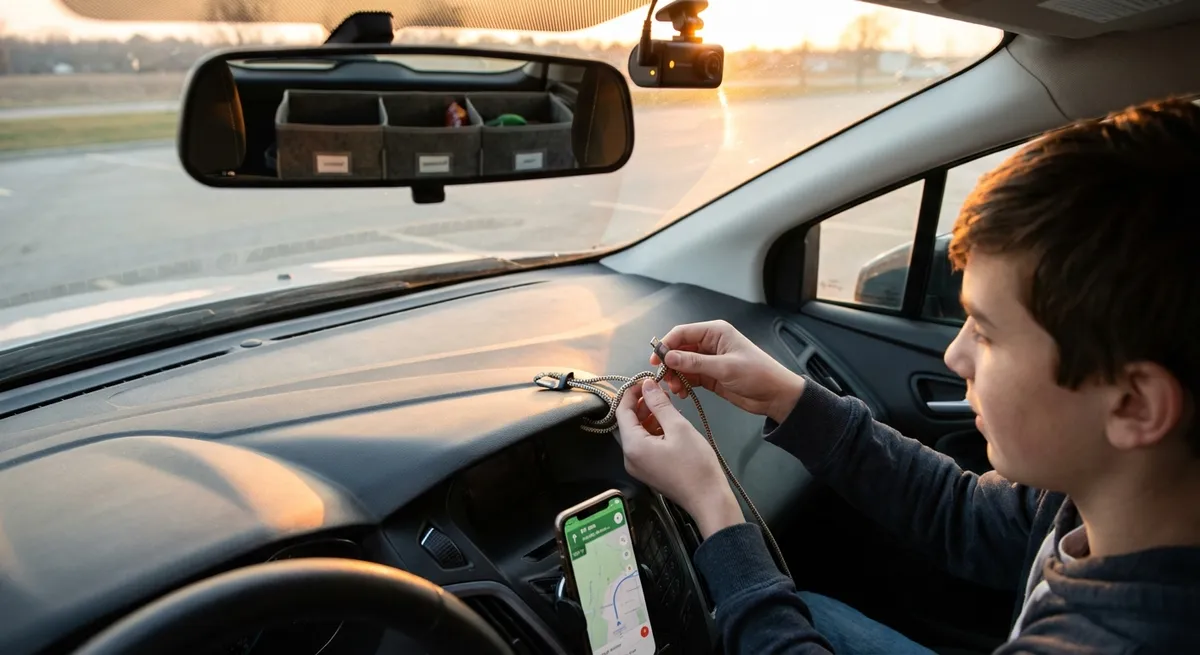
If your car supports Apple CarPlay or Android Auto, use it. These systems are safer than juggling your phone because they optimize controls, limit distractions, and use voice commands for most functions. If your car doesn’t support them, consider an aftermarket head unit or a high-quality magnetic mount placed low and off to the side, not blocking your windshield.
Finally, link your favorite audio apps (Spotify, Audible, Apple Podcasts) to your car’s Bluetooth and pre-download content over Wi‑Fi before long trips. That way you avoid data spikes, buffering, and fumbling with your phone once you’re moving.
Actionable point #1: Build a dedicated driving setup on your phone (apps, Do Not Disturb, voice commands) and commit to using it every time you drive.
Use Built-In Safety Tech Intelligently (Not Blindly)
Modern vehicles include advanced driver-assistance systems (ADAS) like lane-keeping assist, adaptive cruise control, blind-spot monitoring, and automatic emergency braking. Too many owners never adjust these or misunderstand what they can and can’t do.
Start with your owner’s manual or the manufacturer’s online guides and videos. Learn exactly when features activate, their limits (e.g., weather, poor lane markings), and what each dashboard icon means. Adjust sensitivity and alerts in the settings menu—lane-keeping you “fight” constantly or beeps that never stop will just tempt you to switch everything off.
Use adaptive cruise control on highways you know well to reduce fatigue, but stay engaged: hands on the wheel, eyes forward, feet ready. Treat it as a helper, not an autopilot. For blind-spot monitoring, keep your mirrors adjusted correctly first; the sensors are a backup, not your primary tool.
If your car has a driver attention monitor or drowsiness alert, respect it. If it keeps triggering, don’t just ignore it or turn it off—take it as a hint to check your habits: sleep, caffeine, long nighttime drives, or phone use. Systems that feel “too sensitive” may be catching real behavior patterns you’ve normalized.
Actionable point #2: Spend one dedicated session (30–45 minutes) in your driveway going through your vehicle’s driver-assistance settings, testing alerts, and customizing them so they help rather than annoy.
Optimize Navigation for Real-World Driving, Not Just Shortest Time
Navigation apps are more powerful than ever, but most drivers use them on “default mode” and get default results. A bit of setup can mean safer, less stressful trips.
First, go into the navigation app settings and turn on speed limit display and speed alerts where available. This isn’t about driving faster—it’s about avoiding accidental speeding on unfamiliar roads or in changing zones.
Next, fine-tune route preferences. If you hate left turns across traffic, select “avoid difficult turns” where supported. If you prefer main roads at night instead of shortcuts through dark neighborhoods, set your preferences accordingly. For EVs, use EV-specific navigation that includes charger availability and preferred networks, not just charger locations.
Save real favorites: home, work, kids’ schools, frequent stores, known safe fuel or charging stations. This reduces fiddling with addresses mid-drive. On longer trips, check live traffic and incident reports before you leave—sometimes leaving 10–15 minutes earlier or taking a slightly longer, calmer route is better than sitting in stop-and-go congestion.
Finally, learn basic voice commands for your navigation system or phone. Being able to say, “Navigate to nearest gas station” or “Find parking near [destination]” is a major safety upgrade over typing.
Actionable point #3: Customize your main navigation app’s route, speed, and voice settings, and save your usual destinations so you can start any trip with two taps or a voice command.
Add Simple Tech to Track Your Car’s Health and Location
You don’t need a full race telemetry setup to keep an eye on your car’s condition. A couple of small tech additions can provide warning signs before problems get expensive—and help you recover the car if something goes wrong.
A Bluetooth OBD-II scanner paired with a phone app can read diagnostic trouble codes (DTCs) when your check engine light comes on. Instead of guessing or panicking, you can see whether the issue is minor (like a loose gas cap) or urgent (like misfires or overheating). Many apps also show basic live data: coolant temperature, battery voltage, fuel trims, and more. That context helps you talk to mechanics more confidently.
If you park on the street, at airports, or in large apartment lots, consider a discreet GPS tracker or use your car’s built-in connected services (if available). These services can often show your car’s location, lock/unlock doors remotely, and sometimes even start the engine or activate climate control. Even if you never face theft, the ability to find your car or confirm that you actually locked it can lower daily anxiety.
For families sharing vehicles, use your manufacturer’s app or compatible trackers to set location notifications or speed alerts for teen drivers. Think of this as a coaching tool, not just surveillance—it opens up conversations about safe habits using actual data, not guesswork.
Actionable point #4: Install a reliable Bluetooth OBD-II scanner and app, and learn how to read basic trouble codes and live data before you urgently need them.
Make Driver Comfort a Tech Feature, Not an Afterthought
Comfort tech is more than just luxury—it affects fatigue, reaction time, and how much you enjoy the car you already own. A few small tweaks can make long drives feel shorter and daily commutes less draining.
Start with seat and steering wheel adjustments. If your vehicle has memory settings, program profiles for each regular driver, including seat position, mirror angles, steering wheel height/reach, and lumbar support. Many cars allow tying these profiles to each key fob, so the car automatically adjusts as you unlock it.
Use climate control intelligently: auto mode is usually better at maintaining comfort than constant manual adjustments. In hot climates, remote start (where legal and available) combined with pre-set A/C can protect your interior and electronics from extreme heat. In EVs and some plug-in hybrids, pre-conditioning while plugged in preserves driving range.
If your car supports adjustable drive modes (eco, comfort, sport, individual), experiment with setting one mode for your daily commute and another for long highway drives. Softer throttle response and lighter steering can reduce fatigue in stop-and-go traffic, while a more responsive setup might feel better on open roads.
Even small accessories count as “comfort tech”: a high-quality dash cam with parking mode doubles as security; a wireless charging pad reduces cable clutter; and a good sunshade paired with a connected climate system makes the cabin feel civilized even after sitting in the sun.
Actionable point #5: Set up and save at least one personalized comfort profile in your car (seat, mirrors, climate, drive mode), then actually use it for a week and tweak as needed.
Conclusion
You don’t need a new car—or a trunk full of gadgets—to get more from automotive technology. By organizing your phone for driving, personalizing built-in safety systems, optimizing navigation, adding simple health and location tools, and treating comfort as a tech feature, you can transform how your current car feels every day.
The real upgrade isn’t just the hardware—it’s how intentionally you use it. Pick one of the action steps above and put it in place this week. Then add another. Over time, you’ll build a smarter, calmer, and more capable driving experience without ever setting foot in a showroom.
Sources
- National Highway Traffic Safety Administration – Driver Assistance Technologies - Overview of modern safety and driver-assistance systems and how they work
- AAA – How to Properly Use Advanced Driver Assistance Systems - Guidance on using ADAS features safely and effectively
- Apple – Use Do Not Disturb While Driving - Official instructions for setting up driving-focused notification controls on iPhone
- Android Auto – Official Site - Information on Android Auto features, compatibility, and setup
- Consumer Reports – What to Do When Your Check Engine Light Comes On - Practical advice on diagnosing and responding to engine warning lights