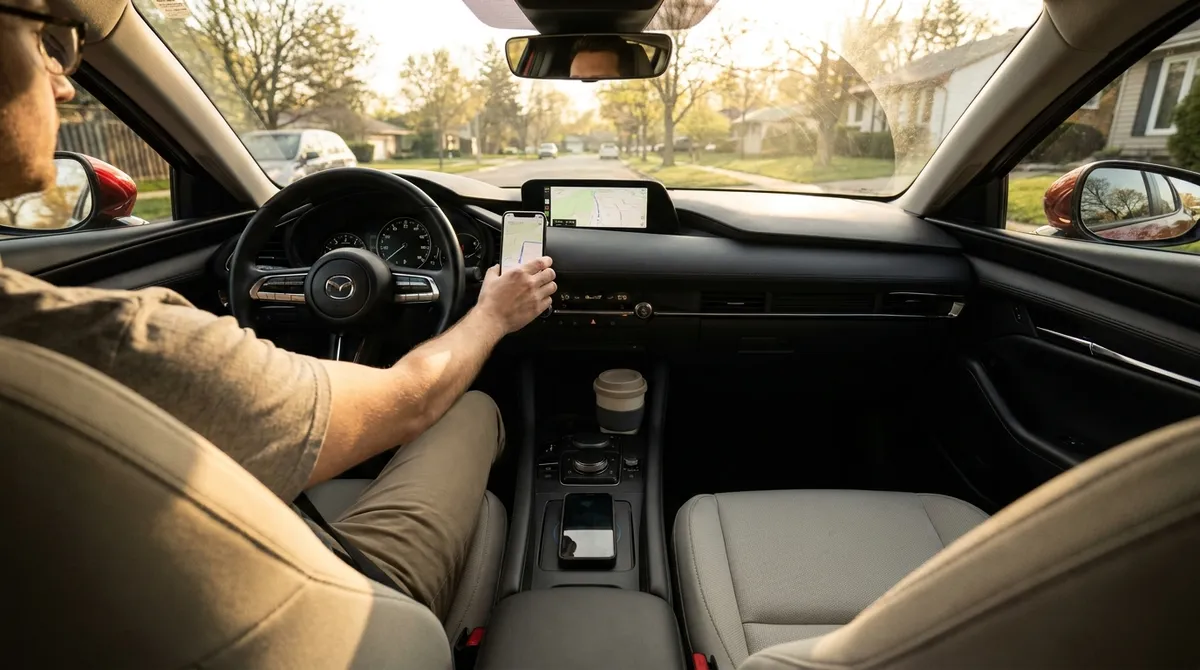
This guide focuses on five practical, tech-centered habits that any car owner can start using today—whether your vehicle is almost new or just “new to you.”
Make Your Driver Profile Work Like a Personal Command Center
If your car has memory seats or driver profiles, it can do more than just remember where you like your seat.
Many newer vehicles tie a driver profile to your key or phone, and that profile can include seat and mirror positions, steering feel, drive mode, ambient lighting, and even ADAS (advanced driver-assistance system) settings.
Actionable steps:
Create a named profile
Instead of leaving it on “Driver 1,” rename it with your name. This makes it easier to manage and adjust.
Save your true daily position
Adjust seat height, lumbar support, steering wheel reach, and mirrors while you’re parked. Once you’re comfortable, save it to your profile. This prevents constant micro-adjusting and keeps your posture consistent, which reduces fatigue on long drives.
Link your key or phone, if available
Many cars let you link a key fob or smartphone to a profile. When you unlock the car, it automatically loads your settings—ideal if multiple people share the vehicle.
Customize “comfort” features beyond the seat
Check your infotainment or vehicle settings menu for: - Auto climate preferences (temperature, auto-on with remote start) - Preferred drive mode (Normal, Eco, Comfort, etc.) - Instrument cluster layout (what info you see first—range, nav, driver assist status)
Set a “second profile” for special use
Create a “Trip” or “Highway” profile with a slightly different seat position, different driver-assist settings (like more aggressive lane-centering), and your preferred highway lighting or HUD (head-up display) layout. Switch to it when you hit the freeway.
Result: Your car adapts to you instead of the other way around, and you consistently drive in a setup that supports comfort, focus, and visibility.
Optimize Driver-Assistance Tech Instead of Just Turning It Off
Many drivers either over-trust driver-assistance systems or switch them off completely. The sweet spot is understanding what your car can and cannot do—and tuning it so it helps instead of annoys you.
Actionable steps:
Learn the exact names of your systems
Go into the manual or the “Driver Assistance” menu and note what you actually have: - Adaptive cruise control - Lane keep assist or lane centering - Blind-spot monitoring - Rear cross-traffic alert - Automatic emergency braking
Different brands use different names, but function matters more than branding.
Adjust warning sensitivity, not just on/off
Most systems let you choose “early/medium/late” warnings or vibration vs audible chimes. If lane-keeping nags you too soon, set it to “late” or reduce steering assist strength, instead of disabling it completely.
Use adaptive cruise as a fatigue reducer, not a chauffeur
On longer drives, set adaptive cruise with a following gap that feels safe to you (often “medium” is a good starting point). Keep hands on the wheel and eyes up—treat it as a helper managing speed, not a replacement for attention.
Make blind-spot monitoring a habit with mirror setup
First, properly set your side mirrors to reduce blind spots. Then treat the blind-spot warning light as a backup confirmation, not your only check. This doubles your safety margin on multi-lane roads.
Test emergency systems in low-risk environments
Some cars allow low-speed forward collision warning tests in dealer or demo modes. At minimum, learn how the warning sounds and looks on the dashboard, so if it ever triggers for real, you recognize it instantly.
Result: Instead of fighting the tech or ignoring it, you tune it so it supports your natural driving style and reduces mental load, especially on busy or long trips.
Turn Your Phone and Infotainment into a Distraction-Free Tool
Your phone and infotainment screen can be your best driving tool—or your biggest hazard. With a bit of setup, you can get navigation, music, and communication without constant tapping and scrolling.
Actionable steps:
Commit to one interface: CarPlay, Android Auto, or native system
If your car supports Apple CarPlay or Android Auto, use it exclusively instead of bouncing between built-in navigation and phone apps. This keeps controls consistent and typically gives you better voice control and updates.
Curate your “driving dashboard” apps
On your phone: - Pin your maps app, a music or podcast app, and one communication app (like messages) as your main CarPlay/Android Auto apps. - Remove non-driving apps (social media, games, email) from your car interface where possible.
Pre-load your route before you move
While parked, set your destination and check route options: - Avoid tolls if needed - Pick “fastest” vs “eco” routes if supported - Note any major delays or closures This avoids fiddling with maps while rolling.
Master voice commands for core tasks
Practice using your car’s voice system or your phone assistant to: - “Navigate to [address or place]” - “Call [contact]” - “Play [playlist, artist, podcast]” - “Read my last text” and “Reply: [your message]” It takes a few drives to feel natural, then you almost never need to touch the screen.
Set up “Do Not Disturb While Driving”
Both iOS and Android can: - Silence most notifications - Auto-respond to texts that you are driving - Allow calls from favorites or repeat callers only This keeps you reachable for emergencies without letting every ping hit your attention.
Result: Your tech works like a focused driving assistant rather than a constant stream of distractions, making every trip calmer and safer.
Use Built-In Energy and Fuel Data to Drive Smarter, Not Slower
Even non-hybrid cars now provide detailed fuel or energy usage data. Instead of just watching the fuel gauge drop, you can use these tools to drive more efficiently without crawling in the right lane.
Actionable steps:
Find your real-world baseline
Reset your trip computer (Trip A or B) at your next fill-up. Drive normally for a full tank and note: - Average MPG (or kWh/100 mi in EVs) - Average speed - Proportion of city vs highway This becomes your “normal” reference point.
Watch short-term consumption rather than instant spikes
Many cars show a bar graph or rolling average over the last 5–15 minutes. Use that instead of the always-jumpy instant MPG number; it better reflects your patterns rather than each throttle tap.
Focus on throttle smoothness, not just low speed
On your next few drives, try: - Gentle, steady acceleration up to speed - Holding a constant speed as much as traffic allows - Anticipating lights so you can coast slightly before braking Check your trip average—it often improves without adding much time to your trip.
Use eco-coaching, if equipped
Some cars score your acceleration, cruising, and braking. Focus on improving one element at a time (e.g., smoother braking on city drives) and see how your score—and fuel usage—responds over a week.
Review data by trip type
Compare: - Short cold-start city runs - Longer highway drives - Mixed commutes This helps you understand which trips hurt efficiency most and where small changes (like combining errands or avoiding repeated cold starts) will actually pay off.
Result: You don’t have to “hyper-mile” to save money. Using your existing data, you can tighten up your driving style and usually gain noticeable range or MPG with minimal effort.
Keep Your Car’s Software and Maps as Updated as Its Oil
Many owners stay on top of oil changes and tires, but ignore software and map updates—especially if they aren’t obviously broken. Yet outdated software can silently affect safety, range, reliability, and navigation accuracy.
Actionable steps:
Check for over-the-air (OTA) capability
If your vehicle is newer, it may download updates via Wi‑Fi or cellular: - Open your car’s settings or “System” menu. - Look for “Software Update,” “System Update,” or similar. - Enable automatic checks, but schedule installation for nighttime or off-hours.
Update maps at least once a year
Whether via USB, dealer, or OTA: - New roads, roundabouts, and speed limits roll out constantly. - Fresh maps improve routing, ETA prediction, and safety-camera or school-zone warnings (where supported and legal).
Look up TSBs (Technical Service Bulletins)
On some government or brand sites, you can search by VIN for: - Software fixes for transmission shifting, infotainment glitches, ADAS behavior, charging problems, etc. These aren’t recalls, so they may be applied only if you complain or ask; knowing they exist gives you leverage at the dealer.
Pair updates with service visits
When you book maintenance: - Ask the service advisor to check for software updates or campaigns. - Request that they list any applied software changes on your invoice. This creates a record and helps you track whether certain issues improve afterward.
Use Wi‑Fi at home for big downloads
Many cars let you: - Connect to your home Wi‑Fi - Download updates in the background - Install them when parked This avoids potential mobile data limits and keeps your car current without extra trips.
Result: Your vehicle’s tech stack ages more gracefully, you benefit from quiet improvements manufacturers roll out over time, and you reduce the chances of bugs or glitches undermining your driving experience.
Conclusion
You don’t need to bolt anything onto your car to get more from its technology. By:
- Treating driver profiles as a personal command center
- Tuning driver-assistance features to your comfort level
- Turning your phone and infotainment into a focused driving tool
- Using fuel and energy data to refine your driving style
- Keeping software and maps updated like any other maintenance
…you turn existing features into everyday advantages.
These habits don’t just make the car feel “smarter”—they reduce fatigue, improve safety, and often save money over time. The tech is already there; the value shows up when you start using it deliberately.
Sources
- NHTSA – Driver Assistance Technologies – Overview of common ADAS features, their purpose, and safety considerations
- IIHS – Crash Avoidance and Driver Assistance – Research-based insights on how driver-assistance systems affect real-world safety
- Fueleconomy.gov – Driving More Efficiently – U.S. Department of Energy guidance on driving habits that impact fuel economy
- Apple – Use CarPlay with your iPhone – Official instructions and best practices for setting up and using Apple CarPlay
- Android – Use Android Auto – Google’s official guide to configuring Android Auto and supported features