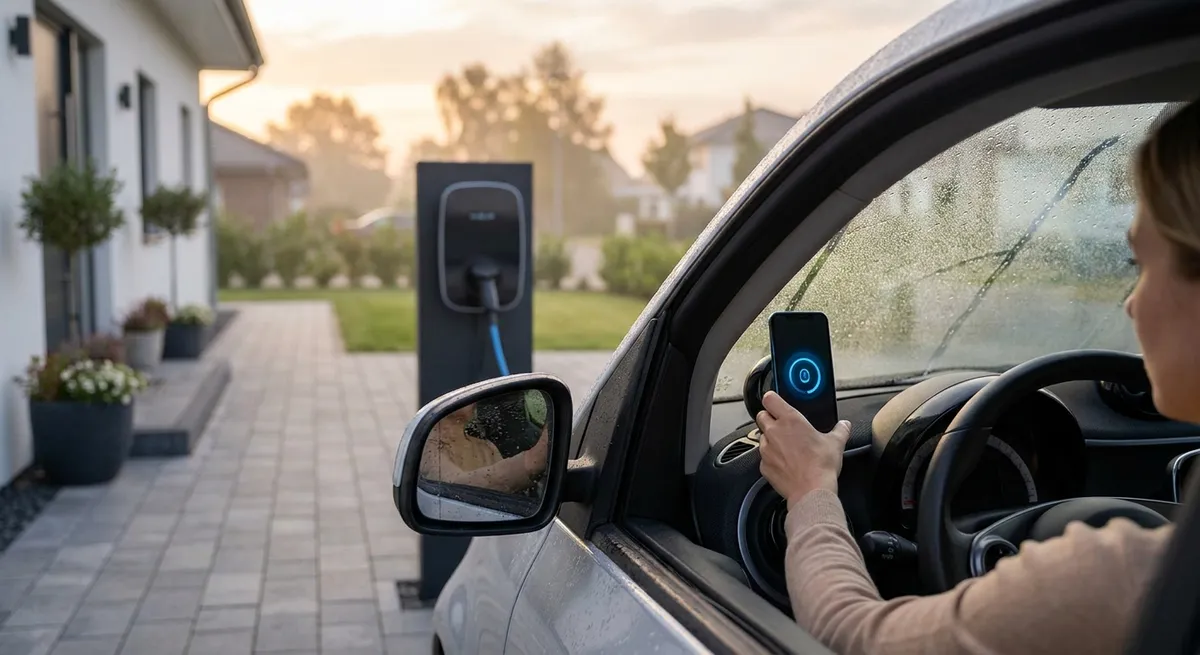
This guide walks through five practical auto tech moves that make a real difference in daily driving, without turning your car into a science project.
Dial In Your Driver Profiles Instead of Living With Defaults
Most late-model cars let you save driver profiles, but few people set them up properly. Done right, they turn your car into a “log in and go” experience.
Start with the basics: seat position, steering wheel, and mirrors. Adjust them for good posture (back fully against the seat, slight bend in knees and elbows) and clear visibility of the road and instrument cluster. Save this as a profile under your name, and do the same for other regular drivers.
Next, link your key fob or smartphone (if your vehicle supports digital keys) to your profile. That way, the car automatically loads your saved settings when you unlock it. On many models you can also bundle audio presets, climate preferences, ambient lighting, and even driver-assistance settings (like lane-keep intensity or following distance for adaptive cruise) into your profile.
If your car has a memory seat button but no obvious profile menu, check the owner’s manual or the automaker’s support site—often the profile features are buried in the infotainment menus. Take 20–30 minutes to set everything once; it pays off every time you get in the driver’s seat.
Use Smartphone Integration as Your Primary Interface
Apple CarPlay and Android Auto aren’t just conveniences; they’re safer and often better than built-in systems. Treat them as your primary in-car interface whenever you can.
Start by cleaning up your phone: uninstall or hide apps you never use, and rearrange your home screen so your core driving tools (navigation, music, messaging) are front and center. Then, customize the CarPlay or Android Auto app order so the most-used functions appear on the first screen—maps, music/podcasts, and one or two communication apps that support voice control.
Turn on automatic Do Not Disturb While Driving (or the equivalent) so notifications are silenced or read out only when necessary. For messaging, rely on voice dictation through your voice assistant (Siri, Google Assistant, Alexa in some vehicles) instead of typing at lights or in traffic. It’s not just safer; it also reduces distractions from glancing back and forth between the road and screen.
If your vehicle supports wireless CarPlay/Android Auto, use it, but keep a cable in the car anyway. Wired connections are usually more stable on long trips and avoid wireless charging heat buildup that can throttle your phone and slow navigation apps. Update your phone’s OS and navigation apps regularly—the mapping data and features (like lane-level guidance) improve over time, and your car benefits for free.
Turn Driver-Assistance Tech Into a Tool, Not a Nuisance
Many drivers either ignore driver-assistance features (like lane-keep assist or adaptive cruise) or leave them on default settings they find annoying. With fine-tuning, these tools can reduce fatigue and improve safety, especially on longer drives.
Start by understanding the systems your car actually has: look up terms like “LKA,” “LFA,” “ACC,” “AEB,” and “blind-spot monitoring” in your owner’s manual or manufacturer’s website. Each automaker uses different names, but the functions are similar. Knowing what’s on board helps you set realistic expectations—these are assistance systems, not self-driving.
Then, customize sensitivity and alerts. If lane-keep nudges feel too strong or beep too often, most cars let you switch from aggressive steering correction to simpler lane-departure warnings or vibrations. For adaptive cruise control, experiment with following distance and acceleration behavior; set it more conservative in heavy traffic and a bit closer on open highways where you can see far ahead.
Get in the habit of turning these systems on when they make sense: long highway cruises, monotonous commutes, or late-night drives. Let adaptive cruise handle speed changes while you focus on situational awareness. Use blind-spot monitoring as a second set of eyes, not a replacement for shoulder checks. You’ll reduce mental load without disengaging from driving.
Add Smart Aftermarket Tech Where Your Car Falls Short
You don’t need a new car to gain useful tech. A few targeted aftermarket upgrades can give older vehicles modern capabilities without “over-modding” them.
If your car lacks a backup camera, a quality aftermarket unit with a license-plate frame camera and dash-mounted screen can dramatically improve low-speed maneuvering. Many now offer parking guidelines and better low-light performance than early factory systems. Just make sure installation doesn’t block your view and that wiring is routed cleanly to avoid pinched cables or water intrusion.
For cars without Bluetooth or modern infotainment, consider a head unit upgrade that supports Apple CarPlay/Android Auto. It instantly modernizes the cabin with better app integration and voice control. Pay attention to fitment kits, steering wheel control adapters, and vehicle-specific harnesses so you don’t lose factory functions. If a full head unit swap is overkill, a simple Bluetooth FM transmitter or a dedicated Bluetooth receiver wired into an AUX port can at least get calls and streaming audio into an older system.
Dash cams are another smart add-on. Choose units with loop recording, G-sensor event locking, and sufficient resolution (1080p or better). Front-only is fine for budget builds; front-and-rear adds more context in crashes. Mount the camera high near the rearview mirror, route cables carefully, and use a hardwire kit with low-voltage protection if you want parking mode. The footage can be invaluable in insurance disputes and hit-and-run incidents.
Treat Software Updates Like Scheduled Maintenance
Your car’s software is as important as its oil and filters. Updates can fix bugs, improve fuel economy, enhance safety systems, and even add features—but many owners never install them.
For vehicles with over-the-air (OTA) updates, verify that automatic updates are enabled and your car is regularly connected—usually via built-in cellular or home Wi‑Fi while parked. When your car prompts you to install an update, don’t ignore it for weeks; schedule it for overnight or a time you don’t need the vehicle. Read the release notes when available so you know what has changed—sometimes interface layouts, button behavior, or assistance system tuning are different after an update.
If your car doesn’t support OTA updates, ask your service advisor to check for software updates during regular maintenance visits. Many dealerships can reflash modules (engine, transmission, infotainment, safety systems) with newer calibrations that address known issues. In some cases, technical service bulletins (TSBs) specifically call for updated software to fix drivability quirks, infotainment glitches, or charging anomalies on hybrids/EVs.
Back up your settings where possible—some systems now let you sync preferences via an account or app. If not, take photos of your key menus before a big update so you can quickly reapply preferred configurations if they reset. Treat software like any other wear item: it needs periodic attention to perform its best.
Conclusion
Auto tech doesn’t have to be complicated or gimmicky. When you tune driver profiles, lean on smartphone integration, properly use assistance systems, add focused aftermarket upgrades, and stay on top of software updates, you turn your car’s tech from background noise into a practical advantage.
Pick one area—profiles, phone integration, driver-assist, aftermarket add-ons, or updates—and optimize it this week. The goal isn’t to chase every new gadget; it’s to make the tech you already have work harder for every mile you drive.
Sources
- NHTSA – Advanced Driver Assistance Systems (ADAS) - Overview of common driver-assistance features, their functions, and safety benefits
- IIHS – Front Crash Prevention and Other Crash Avoidance Features - Research-backed information on how modern tech reduces crashes and what to look for
- Apple – About CarPlay - Official details on Apple CarPlay features, compatibility, and setup guidance
- Android – Android Auto Help - Official Android Auto documentation with setup instructions and troubleshooting tips
- Consumer Reports – Guide to Car Safety Features - Independent explanations and evaluations of in-car tech and safety systems